Installation & Setup
Requirements
Before installing, make sure your store meets these requirements:
- Shopify plan: Shopify, Advanced Shopify, or Shopify Plus (gift cards are not available on Basic)
- Store currency: Set to your primary operating currency — GiftCard Hero uses this for gift card denominations
- Admin access: You need the "Manage gift cards" permission in Shopify Admin
Installing the app
- Find GiftCard Hero in the Shopify App Store.
- Click Add app.
- Review the permissions the app requests and click Install app.
Permissions explained
GiftCard Hero requests access to:
| Permission | Why it's needed |
|---|---|
| Gift cards (read/write) | Create, update, and read gift card balances |
| Orders (read) | Match gift card purchases to orders for analytics |
| Customers (read/write) | Associate gift cards with customer accounts |
| Products (read/write) | Set up the gift card product on your storefront |
| Storefront API | Enable customer-facing features |
Completing the onboarding wizard
After installation, you'll be taken through the setup wizard. It covers the essential steps:
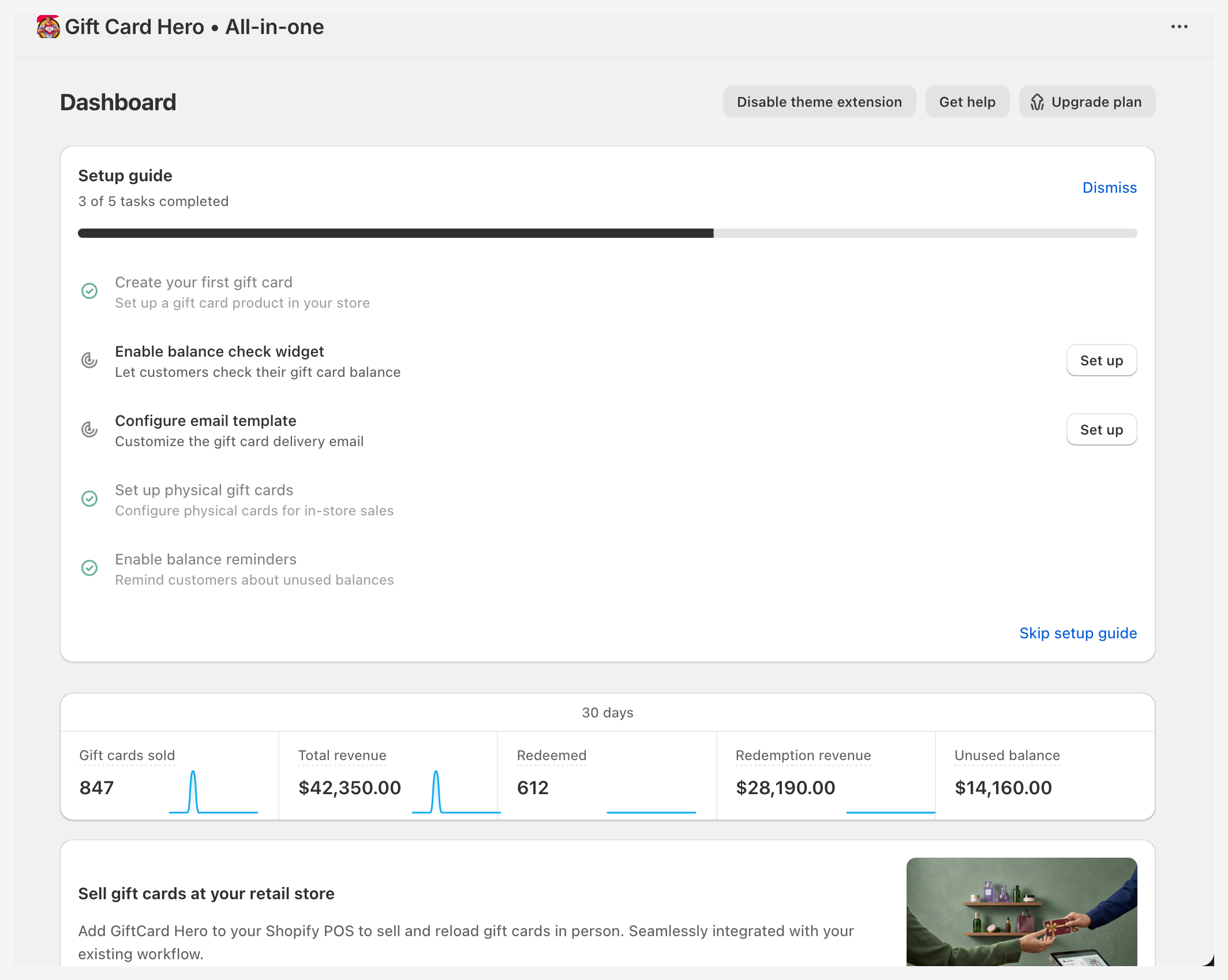
Step 1 — Select a plan
Choose the GiftCard Hero subscription plan that fits your store's volume. You can upgrade or downgrade later from the billing section.
Step 2 — Set up your eGift card product
The wizard creates a Shopify product that customers use to purchase gift cards. You can:
- Set the product title and description
- Choose which denominations to offer (e.g., $25, $50, $100)
- Allow custom amounts within a range
This product will appear in your Shopify storefront and can be managed like any other product.
Step 3 — Customize the gift card email
Set up the email that recipients receive with their gift card code. At minimum, configure:
- Your store logo
- A message from the store
You can fully customize the template later from Email Templates.
Step 4 — Enable the balance check widget (optional)
If you want customers to check their gift card balance on your storefront, enable the widget here. It adds a small widget to your storefront that you can position and style. Full configuration is available in Balance Widget.
Step 5 — POS setup (optional)
If you use Shopify POS, follow the prompts to enable the GiftCard Hero POS tile. See POS Integration for the full setup guide.
After installation
Once the wizard is complete, you'll land on the GiftCard Hero dashboard. At this point:
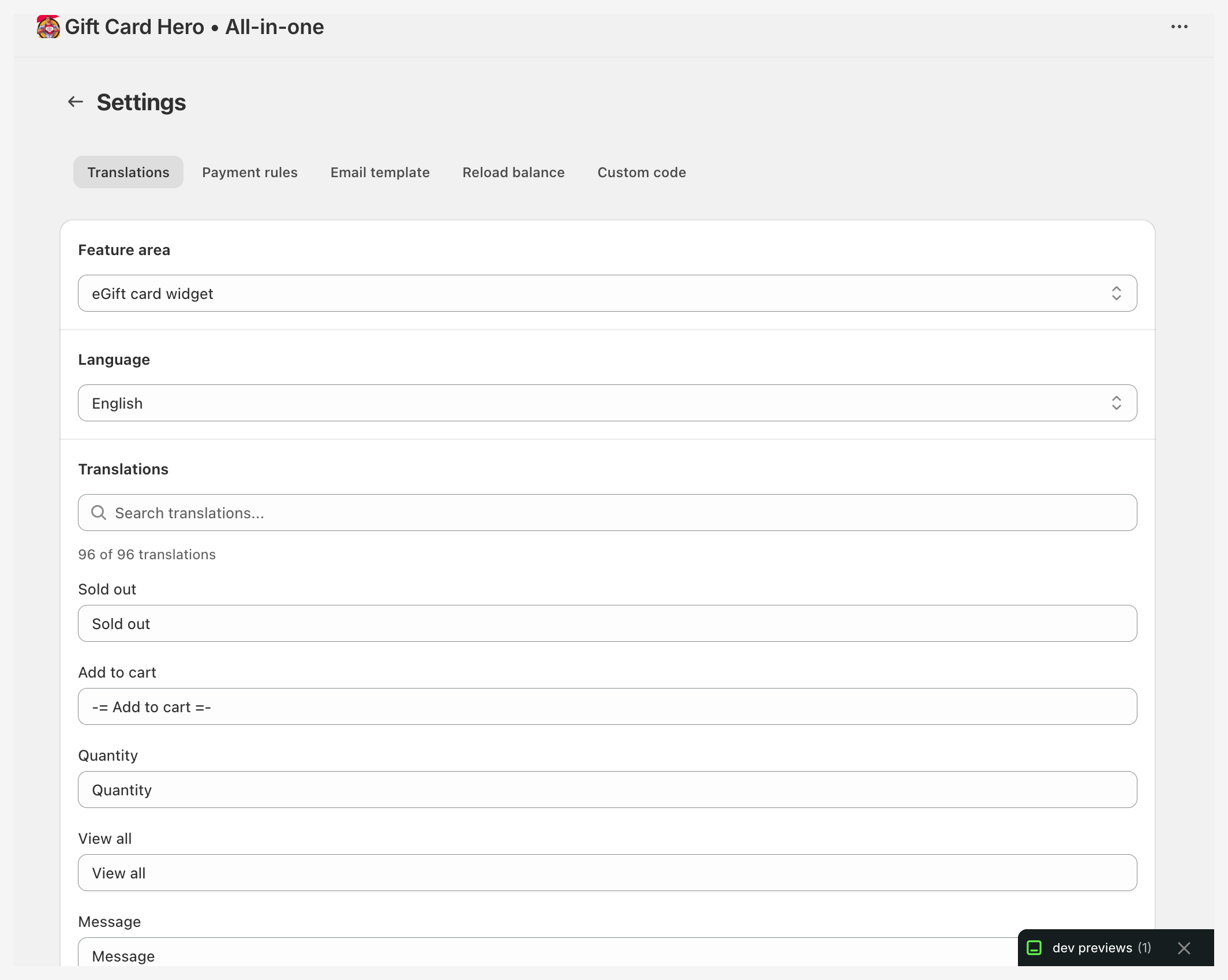
- Your eGift card product is live on your storefront
- Customers can purchase gift cards and recipients will receive them by email
- You can access all features from the left navigation
Uninstalling
If you uninstall GiftCard Hero:
- All existing gift cards remain valid in your Shopify store — they are native Shopify gift cards
- The balance check widget is removed from your storefront
- Your customizations and analytics history are retained for 30 days in case you reinstall
- After 30 days, your data is permanently deleted per our data retention policy
- Greeting messages/videos become unavailable
Note: Uninstalling does not delete or invalidate any gift cards that have already been issued. Customers can still redeem them at checkout.