Loyalty Money FAQ: Refunds, Expiration & Limits
Loyalty rewards move real money, so it's worth understanding how credit behaves when orders are refunded, when it expires, and how to keep issuance under control. This article answers the most common questions.
How is loyalty credit issued?
Rewards are issued as store credit and added to the customer's rewards balance. Behind the scenes the balance lives on a Shopify gift card, so it works at your checkout and in Shopify POS just like any gift card. Customers spend it by entering their code at checkout — see How customers redeem rewards.
Each customer has one balance for all rewards, whichever workflow issued them. The balance is held in your store's currency. Rewards that depend on an order amount, such as cashback, are calculated from the order's value in your store's currency, even when the customer paid in another currency.
What happens to a reward when the order is refunded?
By default, Gift Card Hero claws back loyalty credit when the order that earned it is refunded. The clawback is proportional to the refund: it takes back the same share of the reward as the share of the order that was refunded.
- Refund half the order's value, and half of the reward is reversed.
- Refund the whole order, and the whole reward is reversed.
- Refund an order in several parts, and each refund reverses its own share. The total reversed never exceeds the reward.
The share is the money refunded divided by the order total, so a refund that only returns shipping reverses only a small part of the reward. Every reward that the order earned is included, whichever workflow issued it.
A reversed reward appears in the customer's transaction history labeled Reversed. On your Loyalty Dashboard, Recent activity shows it as "A refund took back $X from …".
A balance never goes negative
If the customer already spent some or all of the reward before the refund, Gift Card Hero takes back only what is still on the balance. The part that was already spent is not recovered. The balance stops at zero and never goes below it.
Only rewards tied to an order are clawed back
Rewards that don't come from an order, such as a sign-up or birthday reward, are not affected by refunds. Cancelling an order without refunding it does not claw back credit either.
Refunds also change the customer's tier
Separately from clawback, a refund or a cancellation reduces the spend that counts toward the customer's tier, and the tier is recalculated right away. This happens even when clawback is turned off.
How do I turn clawback off?
- From the Loyalty Dashboard, open Settings.
- In the General card, uncheck Automatically claw back loyalty credit on refunds.
- Save.
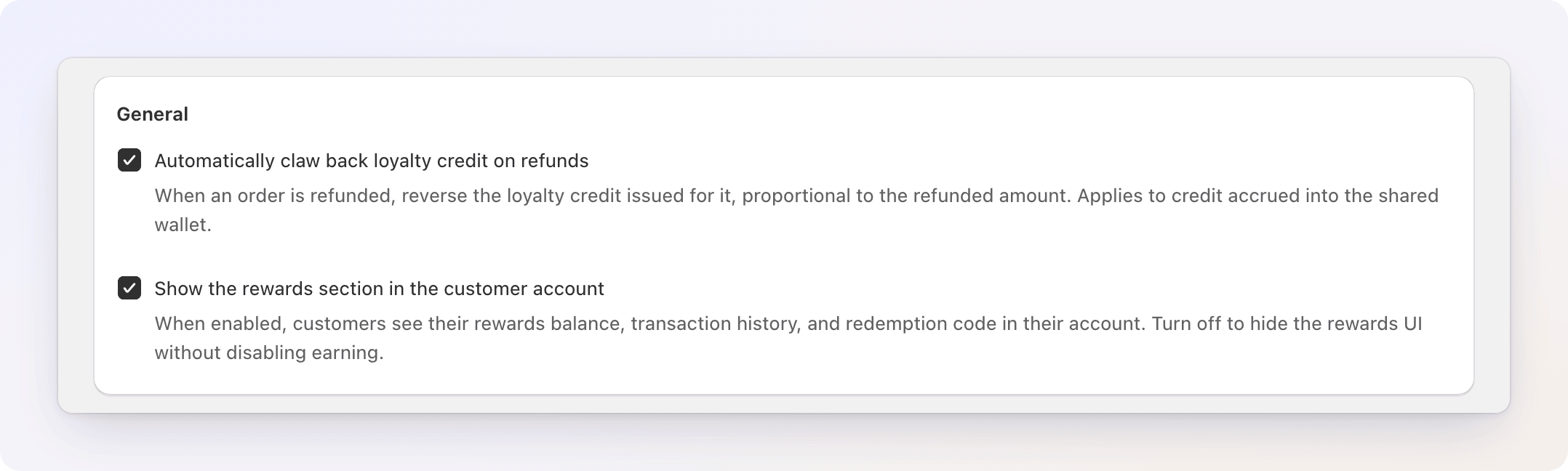
With clawback off, rewards stay with the customer even if their order is later refunded.
Reward after the refund window instead
If refund abuse is your concern, add a Wait / Delay step before the reward in your workflow. For example, wait 14 days before issuing cashback, so the reward only lands once your return window has passed. If the order has been fully refunded when the wait ends, the steps after the wait are skipped and no reward is issued.
Does loyalty credit expire?
It can, if you set an expiry. In the Issue Credit action, open More options and set Credit expires to After N days (it starts at 90 days). With Store default the credit never expires: there is no store-wide expiry setting yet. The Issue Cashback action has no expiry setting, so cashback does not expire.
Three things are important:
- Only unspent credit expires. Anything the customer has already spent is theirs. When a reward reaches its expiry date, only the part of it that is still unspent is removed.
- The oldest expiring credit is spent first. When a customer redeems, the spending is counted against the credit that's closest to expiring before newer credit, and credit that never expires is counted last. This "first in, first out" order means customers naturally use credit before it lapses.
- Expiry is checked once a day. Credit is removed on the first daily check after its expiry date.
Expired credit shows as Expired in the customer's transaction history, and in the Credit issued / spent figures on the Analytics tab.
Customers are warned before credit expires
Gift Card Hero sends a reminder email about 7 days before a reward expires, so the customer has a chance to use it. The email has fixed wording, and it is sent once per reward. It names the reward's original amount, so it can mention more than the customer still has left.
What stops a workflow from issuing too much?
Loyalty includes guardrails that protect you from runaway issuance — a misconfigured percentage or an unexpected spike in orders. Set the store-wide ones in the Guardrails card of Loyalty Settings (Loyalty dashboard → Settings), and a per-workflow budget with Budget in the workflow builder toolbar.
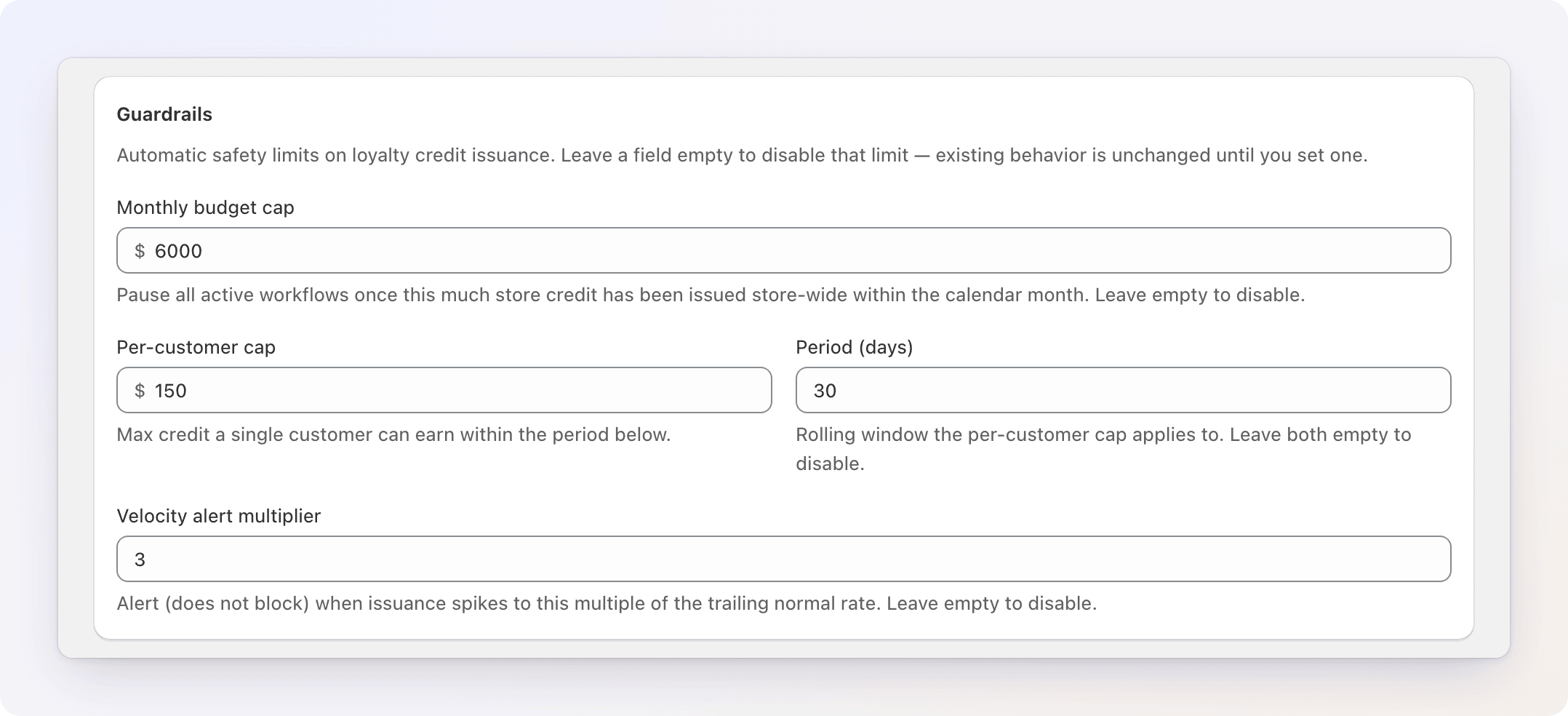
| Guardrail | Where | What it does |
|---|---|---|
| Monthly budget cap | Settings | A ceiling on the credit issued store-wide in a calendar month. When a reward would take the month's total over the cap, it is not issued, the workflow that tried to issue it is paused, and you get an email. |
| Budget (per workflow) | Workflow builder toolbar | The same ceiling for one workflow. The workflow is paused when its own reward would exceed it. |
| Per-customer cap and Period (days) | Settings | The most credit one customer can earn in a rolling period, for example $50 in 30 days. A reward that would go over is skipped. The workflow keeps running for everyone else. Fill in both fields; with only one, the limit is off. |
| Velocity alert multiplier | Settings | An email when the credit issued today is more than this many times your average daily issuance of the previous 7 days. It never blocks or pauses anything, and you get at most one alert per day. |
A few details:
- A reward that lands exactly on the cap is still issued. A reward that is blocked is not issued later, even if you raise the cap.
- Months are counted in UTC.
- Alert emails go to your store's contact email address.
- Leave a field empty to switch that limit off.
What to do when a workflow is paused
A workflow paused by a guardrail stops issuing credit until you reactivate it. You can find it in three places:
- The Loyalty Dashboard shows a warning under Needs attention, titled "A workflow was paused by a guardrail", with a Review workflows button.
- In Manage Workflows, the workflow has a Paused by guardrail badge that shows which cap was reached and how much was spent.
- In the workflow builder, a Paused by guardrail banner has a Reactivate button.
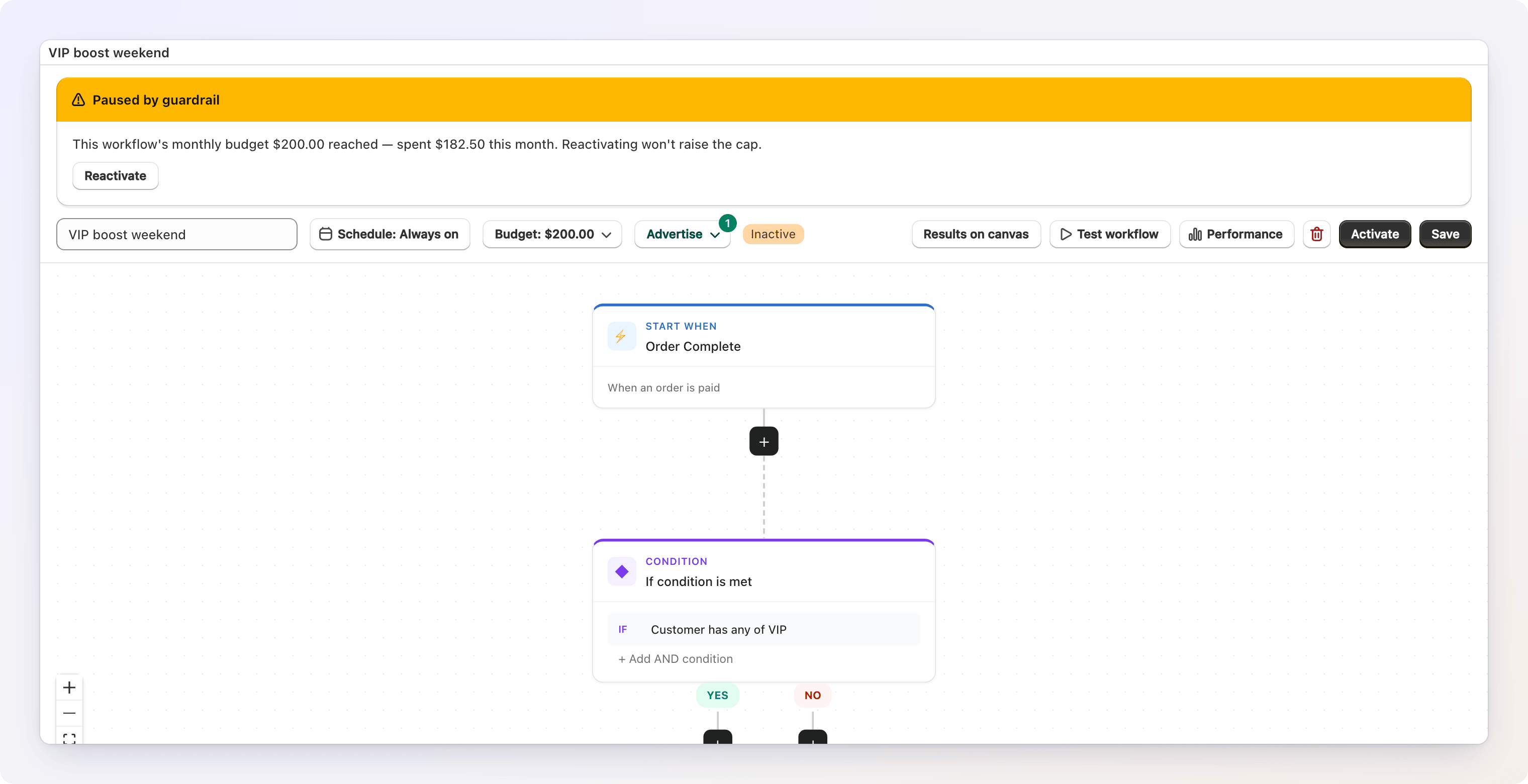
Reactivating does not raise the cap, and the limit stays exceeded until the end of the month, so the workflow can pause again. Raise the cap first if the pause wasn't intended.
Open Performance in the builder to see how many rewards a guardrail blocked and why. See Loyalty Analytics.
Why did this customer get this credit?
When you need to trace a reward:
- Check the dashboard. Recent activity on the Loyalty Dashboard lists the latest entries in plain words, such as "jane@example.com earned $4.20 from "Cashback over $50"", with the date.
- Check the workflow. Open the workflow and click Performance, then Results on canvas, to see how often each step ran and which branch customers took. See Loyalty Analytics.
- Reproduce it. Open the workflow and use Test workflow with that customer and a sample order to see exactly which conditions matched and how the amount was calculated — without issuing anything.
Between these, you can explain a reward: which workflow fired, what it matched, and how much it gave.
How do I stop everything quickly?
- Pause one workflow: open it and click Deactivate.
- Hide the whole program from customers: in Settings, turn off Show the rewards section in the customer account. Customers keep their balances; the section simply disappears until you turn it back on.
Deactivating does not remove credit customers already have. See How customers redeem rewards for more on the customer-facing controls.