Loyalty Tiers
Tiers group your customers by how much they've spent over time, and give higher tiers a bigger reward. A customer's tier carries a multiplier that increases the store credit your workflows issue them.
Open tiers from the Loyalty Dashboard: click Manage Tiers.
How tiers work
- A customer qualifies for a tier when their lifetime spend reaches the tier's minimum spend. They're placed in the qualifying tier with the highest minimum spend.
- Each tier has a multiplier. When a workflow issues credit or cashback with Boost by customer tier turned on (it is by default), the amount is multiplied by the customer's tier multiplier — before the action's maximum cap is applied. See How Issue Credit and Issue Cashback work out the amount.
- A customer with no tier gets no boost.
Example
Gold has a 1.5x multiplier. A workflow issues 5% cashback on a $200 order — that's $10. A Gold customer receives $15 instead. A customer with no tier (or a 1x tier) receives the base $10. If the action has a maximum of $12, the Gold customer receives $12: the boost comes first, then the cap.
What counts as lifetime spend
Gift Card Hero keeps its own running total for each customer — it doesn't read Shopify's "total spent".
- Each paid order adds its total, in your store's currency — what the customer paid, so items after discounts plus shipping and tax. An order is added once, however many times Shopify reports it.
- Counting starts when the customer first receives a reward. That is when their rewards balance is created; orders from before then aren't added. The order that earned the first reward is.
- Refunds and cancellations subtract. A refund takes off the money actually refunded; a cancelled order takes off whatever of it was still counted. The total never goes below zero, and one order can never take off more than it added. The tier is re-checked straight away, so a customer can drop a tier as soon as the refund arrives.
- It never expires. Spend doesn't fade with time, so a customer only moves down when spend is taken off.
When the tier changes
A customer's tier is updated after the workflows for an order have run. The order that lifts a customer over a threshold is therefore still rewarded at their old tier; the next order gets the new multiplier.
The tiers table
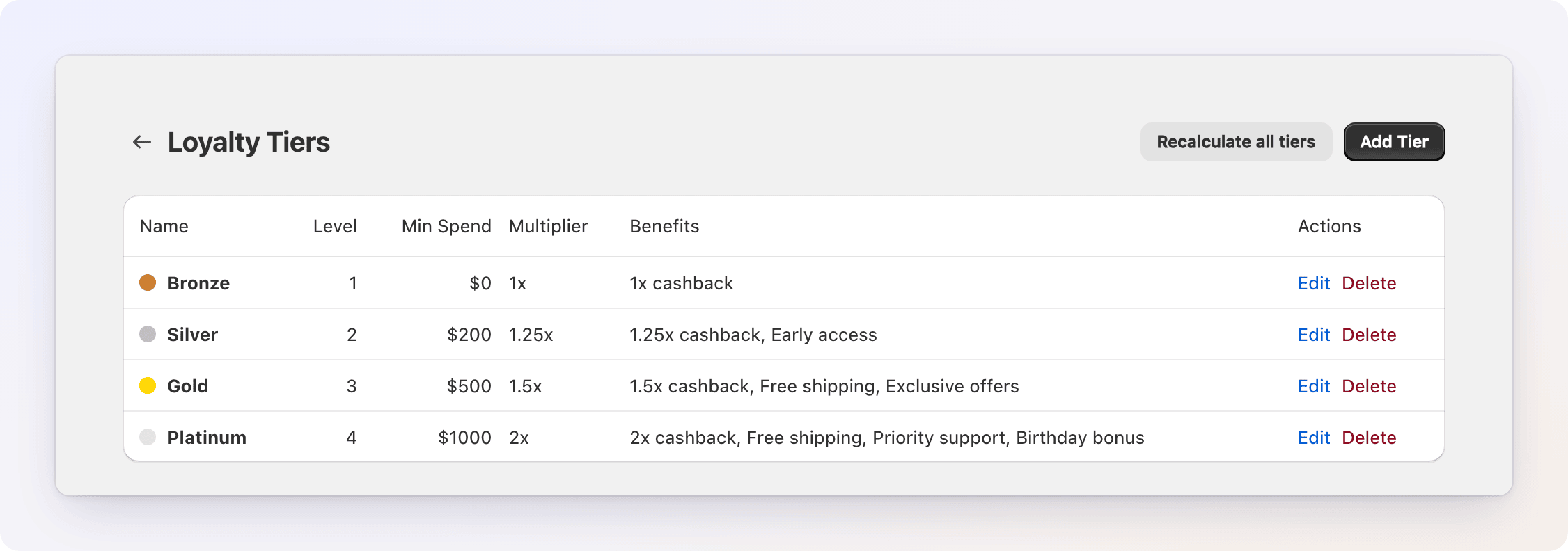
Each row shows the tier's Name (with its color), Level, Min Spend, Multiplier, Benefits, and Edit / Delete actions. Level puts the tiers in order from lowest to highest.
Keep levels and thresholds in the same order
Customers are placed by minimum spend, but Level decides which tier is higher for the Tier Level condition, Update Tier, and the next-tier progress customers see. Give a higher tier both a higher level and a higher minimum spend.
Create your tiers
If you have no tiers yet, click Create Default Tiers to add a ready-made set. You can edit or delete any of them afterward.
| Tier | Level | Minimum spend | Multiplier |
|---|---|---|---|
| Bronze | 1 | $0 | 1x |
| Silver | 2 | $200 | 1.25x |
| Gold | 3 | $500 | 1.5x |
| Platinum | 4 | $1,000 | 2x |
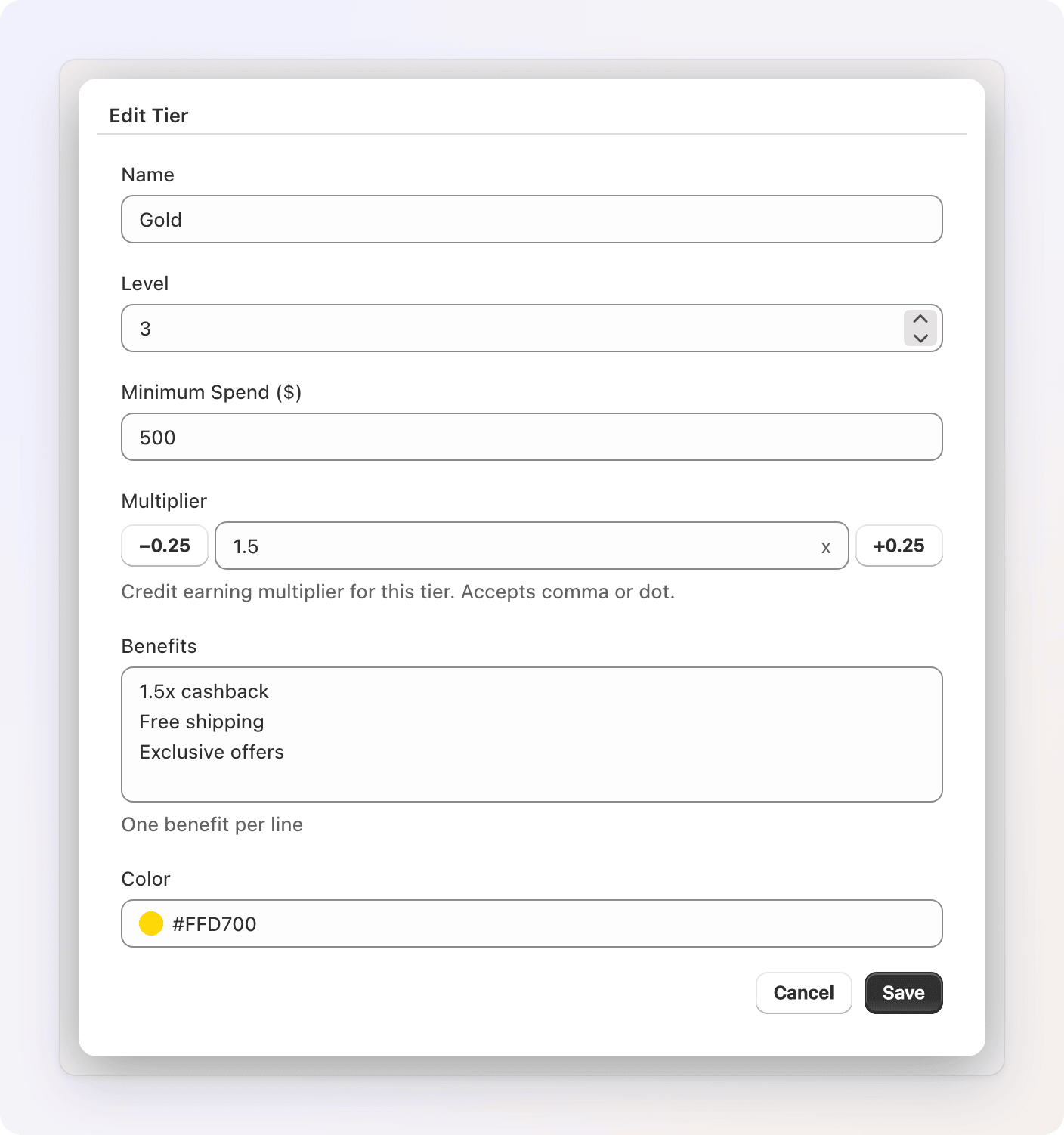
To add your own, click Add Tier and fill in:
| Field | What to enter |
|---|---|
| Name | The tier's display name (for example, Gold). Customers see it on their badge. |
| Level | Its rank, from lowest to highest. A new tier starts one above your current count. |
| Minimum Spend ($) | The lifetime spend a customer needs to qualify, in your store currency. |
| Multiplier | How much to multiply rewards for this tier (starts at 1). Use the −0.25 / +0.25 buttons or type a value; a comma or a dot both work. |
| Benefits | One benefit per line — for your own reference. Customers don't see them, and they don't change any reward. |
| Color | A color code (for example #C0C0C0) used for the tier badge customers see. |
Click Save. Changing a multiplier affects rewards issued from then on; credit already issued isn't touched. Changing a minimum spend moves customers at their next order — or when you recalculate.
Automatic assignment
You don't have to assign tiers by hand. As customers place orders, Gift Card Hero updates their tier based on their lifetime spend. When someone crosses a tier's minimum spend, they move up automatically — and when refunds or cancellations bring their spend back under it, they move down.
Tiers are tracked for customers who have a rewards balance, so a customer has no tier until they've received their first reward and their spend reaches a tier's minimum. With the default tiers, Bronze has a $0 minimum, so everyone with a balance is at least Bronze.
Recalculate all tiers
Sometimes you'll want to re-evaluate everyone at once — for example, after you change a tier's minimum spend, or when you first set tiers up. When you have at least one tier, click Recalculate all tiers.
Gift Card Hero re-checks every customer who has an active rewards balance against the current tiers and reports how many were processed, promoted, and demoted in a message like "Recalculated tiers — 128 processed, 12 promoted, 3 demoted". Tiers you granted with Update Tier are respected.
Keep your lowest tier's minimum spend at 0
Recalculating puts a customer who is below every minimum in your lowest tier, while automatic assignment leaves them with no tier. If your lowest tier has a minimum above $0, recalculating can place customers in it before they've qualified. A $0 lowest tier — as in the defaults — keeps both in agreement.
Setting a tier from a workflow
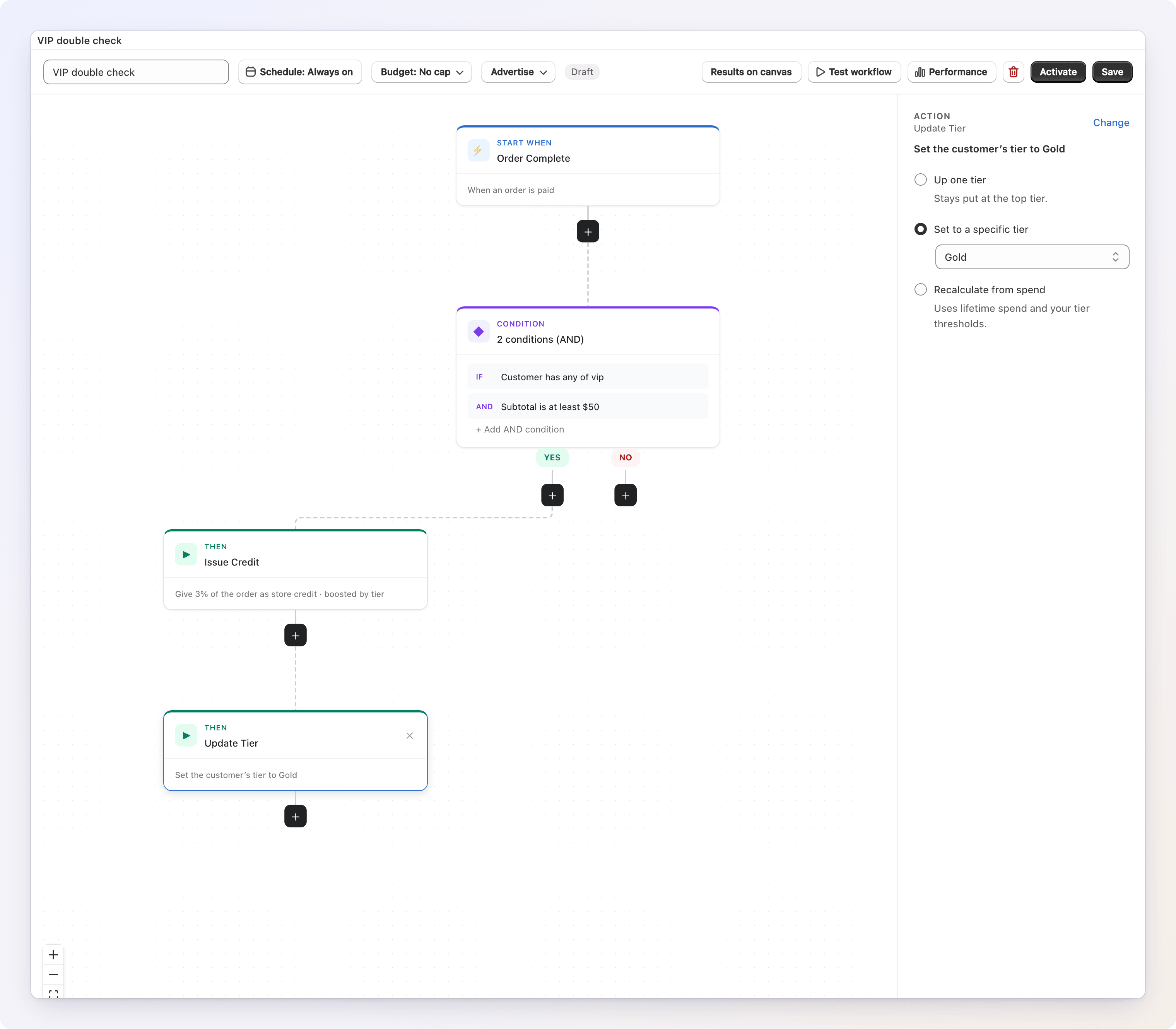
You can also grant a tier directly from a workflow using the Update Tier action, which offers three choices:
- Up one tier — move the customer up one level. Stays put at the top tier.
- Set to a specific tier — place the customer in a tier you choose.
- Recalculate from spend — re-evaluate the customer's tier from their lifetime spend and your thresholds.
A granted tier acts as a floor
When you set or promote a customer's tier explicitly, they keep it even if their spend alone wouldn't qualify them for it — refunds and Recalculate all tiers won't drop them below it. Natural upgrades still apply on top: if their spend later qualifies them for an even higher tier, they move up. Setting a lower tier explicitly lowers the floor to that tier. If you delete the tier that was the floor, the floor is ignored.
Update Tier works on customers who already have a rewards balance. If the customer hasn't received a reward yet, it does nothing — put it after the step that issues their first credit.
Using tiers in conditions
Tiers can also gate rewards. Add the Tier Level condition to a workflow to run steps only for customers at, above, or below a given tier — for example, "extra cashback for Gold and above." It compares tier levels. A customer with no tier never passes this condition, whichever comparison you choose — including is not.
What customers see
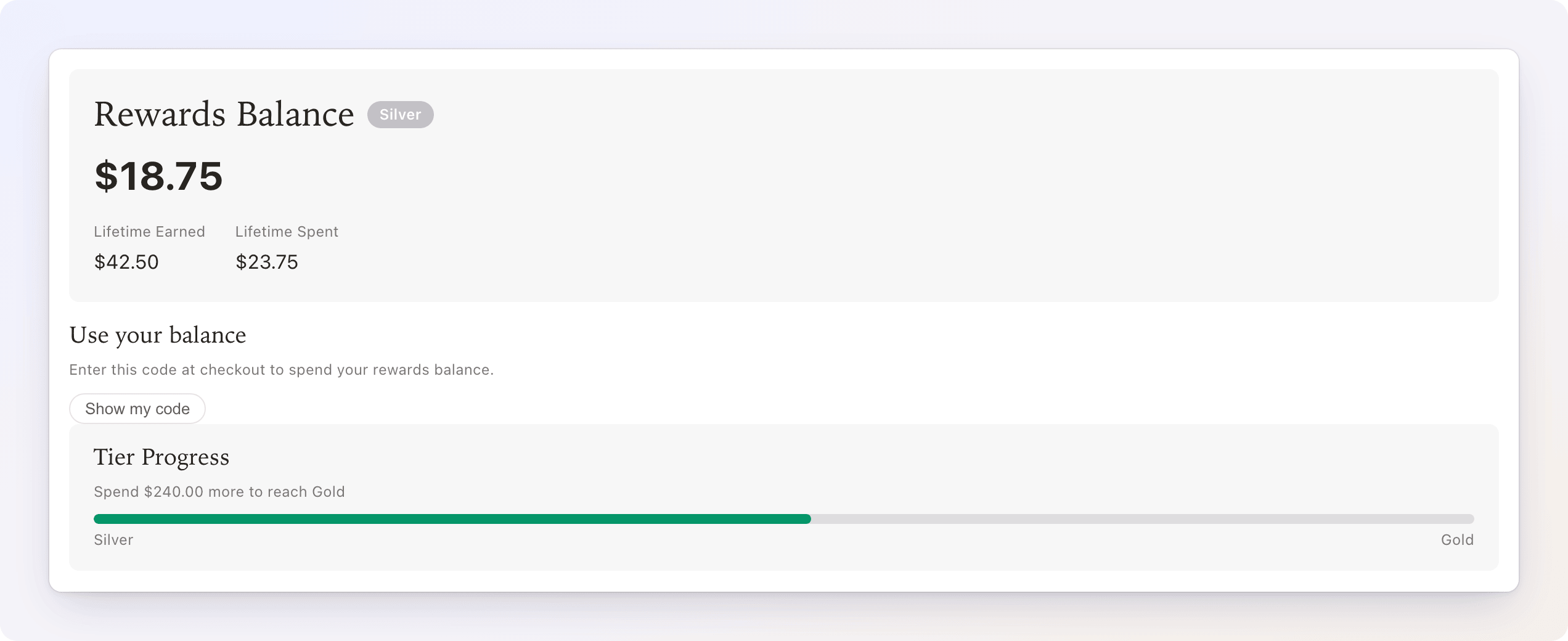
Customers see their current tier as a badge in their rewards section, plus a Tier Progress card with a progress bar toward the next tier ("Spend $X more to reach Gold"). At the top tier there's no progress card. See How customers redeem rewards. Messages can show the same numbers with the tier.name, tier.next_name and tier.spend_to_next variables.
Deleting a tier
Click Delete on a tier row and confirm. Customers assigned to that tier have no working tier from then on — no badge and no multiplier — until their next order or until you run Recalculate all tiers, which moves them to the tier they now qualify for. Rewards already issued aren't changed.