Gift Card Balance Reports
A balance report is a snapshot of every gift card in your store that still has money on it. It answers the question your finance team asks at the end of each quarter: how much unredeemed gift card value is outstanding, and on which cards?
Reports are created automatically after each calendar quarter ends. They are kept in the app, so you can open or download any past report at any time.
Availability
Balance reports are switched on per store. If you do not see the Gift card balance reports button on the Analytics page, contact support and ask for quarterly balance reports to be enabled. Support also sets who receives the quarterly email.
What a report contains
Each report lists every gift card that is active and has a balance above zero, read directly from Shopify at the moment the report is built. Disabled cards and cards with nothing left on them are not listed.
Because the data comes straight from Shopify, balances are always current at that moment — they do not depend on the Analytics sync described in Dashboard & Analytics.
The downloadable CSV has one row per card and these columns:
| Column | What it shows |
|---|---|
| First name, Last name, Email | The customer the card is attached to in Shopify |
| Gift card (last 4) | The last characters of the gift card code |
| Initial value | The value the card was issued with |
| Unredeemed balance | What is left on the card |
| Currency | The currency of the card |
| Issue date | The day the card was created |
| Last activity date | The day of the card's latest transaction, or the issue date if it has none |
| Expiry date | The expiry date, empty when the card does not expire |
| City, Province, Country | From the customer's default address |
Street addresses and postal codes are never included.
Cards that have no customer attached (for example cards issued in bulk, imported, or created by hand without a buyer) are still listed. Their name, email and address columns are empty.
Each report also stores a summary: the number of cards, and the total unredeemed balance per currency. A store that issues cards in several currencies gets one total for each, because amounts in different currencies cannot be added together.
When a report is created
A report is created once for each calendar quarter: Q1 (January–March), Q2 (April–June), Q3 (July–September) and Q4 (October–December).
- The report for a finished quarter is created shortly after the new quarter starts — at the first opportunity once it is 30 minutes past midnight on the first day of the new quarter.
- The quarter and the start time follow your store's time zone (the time zone set in your Shopify admin), not the time zone of your browser. If the time zone is not known, UTC is used.
- The report shows the balances at the time it was built, not at midnight on the last day of the quarter. In practice the difference is minutes, but a card spent in that window is already reflected.
- A finished report is never rebuilt, so what you see later is exactly what was reported.
If building a report fails, the app tries again automatically, about every six hours, up to three attempts in total. If all attempts fail, our team is alerted and the report is shown as Failed in the archive.
Who receives the email
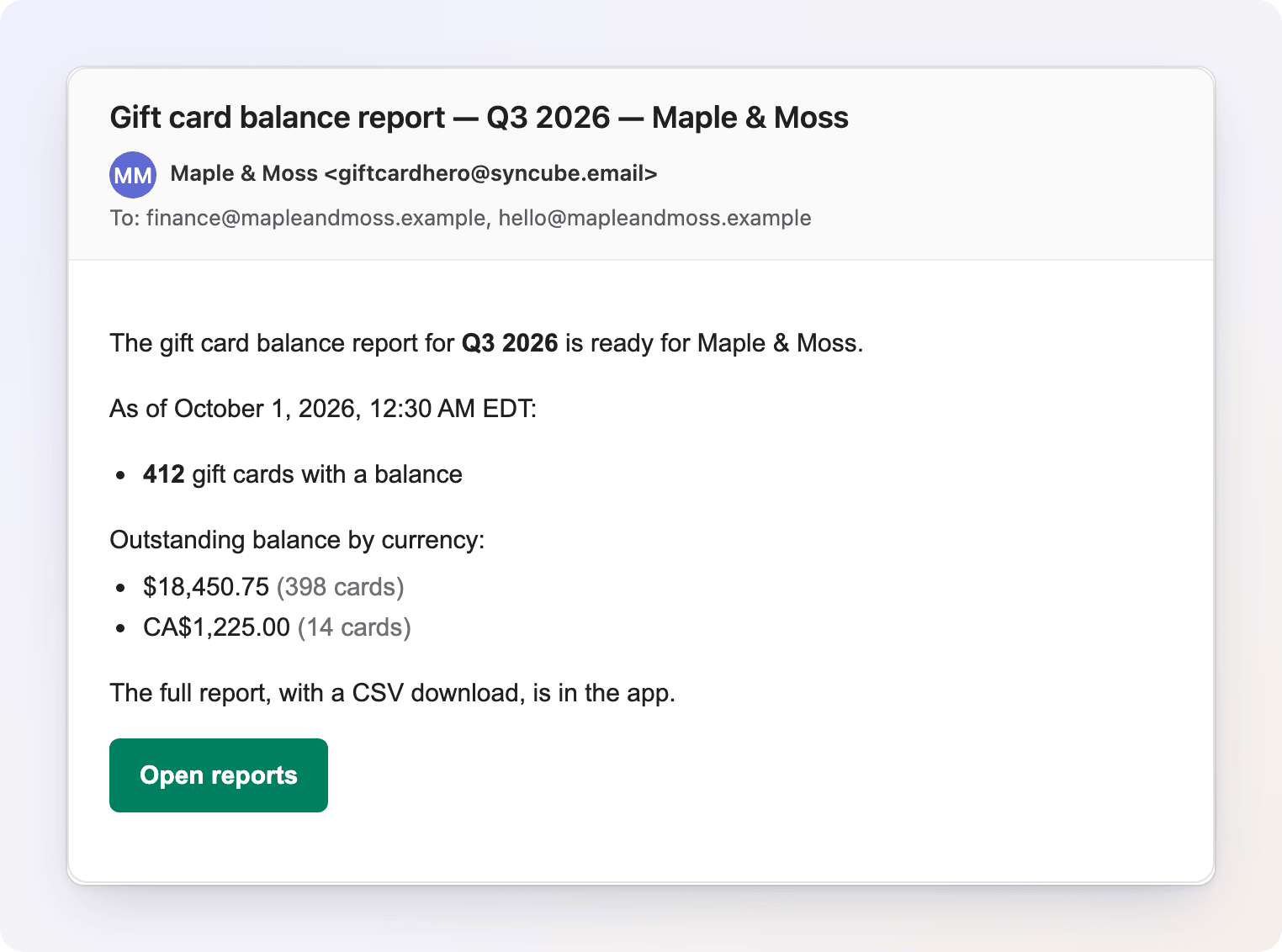
When a scheduled quarterly report is ready, an email is sent to the report recipients. The recipients are set per store by support. If none are set, the email goes to your store's contact email address.
The email contains:
- the quarter, for example Q3 2026
- the date and time the report reflects, in your store's time zone
- the number of gift cards with a balance
- the outstanding balance for each currency
- an Open reports button that opens the archive in the app
The email has no attachment and does not list any customer or card details — the full report stays in the app, where access is limited to people who can open the app in your Shopify admin.
Only scheduled quarterly reports are emailed. A report you create yourself with Generate now is not emailed.
Finding and downloading past reports
- Open the app's home page (Dashboard) and click View analytics in the Analytics card.
- Click Gift card balance reports at the top of the page.
- Find the report in the list and click Download to save it as a CSV file.

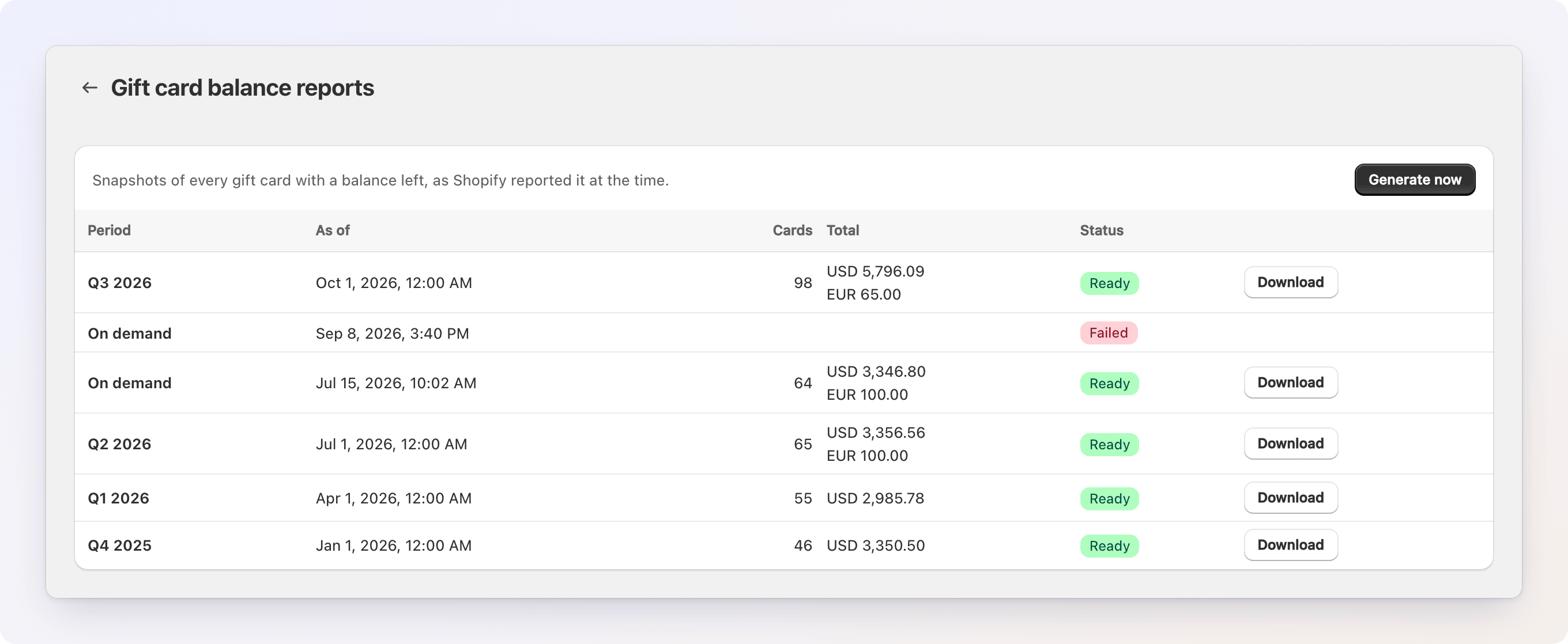
The list shows, for each report:
| Column | Meaning |
|---|---|
| Period | The quarter, for example Q3 2026, or On demand for a report you created yourself |
| As of | The date and time the snapshot reflects, in your store's time zone |
| Cards | How many cards with a balance were included |
| Total | The outstanding balance, one line per currency |
| Status | Ready, Building… or Failed |
Download appears once a report is Ready. If a report shows Failed, hover over the badge to see the reason.
The CSV file
The file is named after your store and the period, for example my-store_gift_card_balance_2026-Q3.csv. It is saved as UTF-8 with a byte-order mark, so Excel shows accented names correctly. Dates in the file are written as YYYY-MM-DD in your store's time zone.
Creating a report on demand
Click Generate now to take a snapshot right away — for example, to answer a question in the middle of a quarter.
- The new report appears in the list as Building… and the list refreshes by itself until it is Ready. Large stores can take a few minutes.
- Only one report is built at a time. While one is Building…, the button is disabled, and a second click returns the report that is already in progress.
- On-demand reports are labelled On demand in the Period column. They are not emailed.
Privacy
Reports contain customer names, email addresses and cities, so treat the CSV like any other customer data.
If a customer asks Shopify to erase their data, their rows are removed from the stored reports and the totals are recalculated. If you uninstall the app and the store's data is deleted, the stored reports are deleted too.
Troubleshooting
I do not see the "Gift card balance reports" button
Balance reports are not enabled for your store. Contact support to switch them on.
The report is missing a card I expected
Only active cards with a balance above zero are listed. Check in Shopify that the card is not disabled and that its balance is more than zero.
Names, emails and cities are empty for many cards
Those cards have no customer attached in Shopify. This is common for cards issued in bulk, imported or created by hand. See Dashboard & Analytics for how the same limitation affects customer reports.
A report is stuck on "Building…"
Large stores can take several minutes, because the app reads cards from Shopify in pages and waits when Shopify asks it to slow down. If a report stays Building… for more than a couple of hours, or shows Failed after retries, contact support.
The quarterly email did not arrive
Check the spam folder and ask support which address is set as the recipient. The report itself is always available on the Analytics page under Gift card balance reports, whether or not the email arrived.