Multi-Store (Store Networks)
Multi-Store links two or more Shopify stores into a network. Gift Card Hero keeps a copy of each gift card in every store, with the same code and the same balance, so a customer can use the card in any store of the network.
This is useful for:
- Brands with separate stores for different regions
- Franchises where each location has its own Shopify store
- Retail and wholesale stores that share customers
Before you start
- Gift Card Hero must be installed on every store, and each store has its own subscription.
- All stores in a network must use the same store currency. A store with a different currency can't join. Multi-currency networks aren't supported.
- A store can belong to one network only.
Open the page
The page is called Multistore Gift Cards. It has no item in the app menu. Open Gift Card Hero in Shopify admin and add /multistore to the app address, or ask support for the link.

Connect a store
Start from the store that will be the primary store. The store that sends the first invitation becomes the primary store. Only the primary store can invite others.
- On the Multistore Gift Cards page, enter the other store's
.myshopify.comname in Store domain. - Choose how to invite:
- Connect store opens the other store's admin in a new tab, where you can confirm right away.
- Get invitation URL shows a link. Click Copy and send it to the manager of the other store.
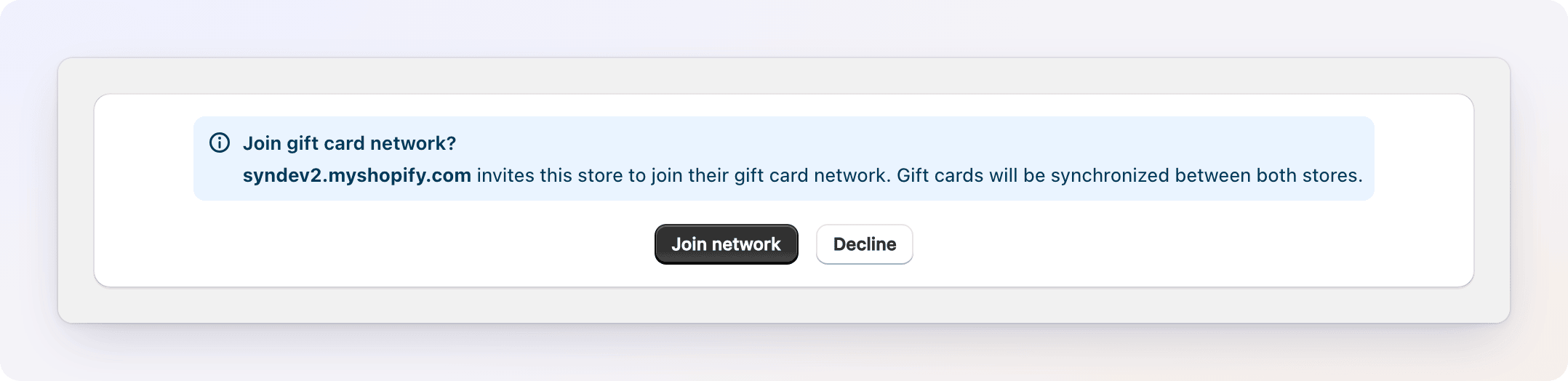
- On the other store, the Join gift card network? page opens. Click Join network. Click Decline if you don't want to join.
An invitation link is valid for 24 hours. After that, create a new one.
When the store joins, Gift Card Hero copies the existing gift cards into it in the background. The page shows how many cards are being synced. For a large number of cards this can take several minutes.
If joining fails
| Message | What to do |
|---|---|
| Invalid or expired invitation | Ask the primary store for a new link |
| Currency mismatch | The stores use different currencies. They can't be in one network. |
| Already connected to another network | Remove the store from its current network first |
The network page
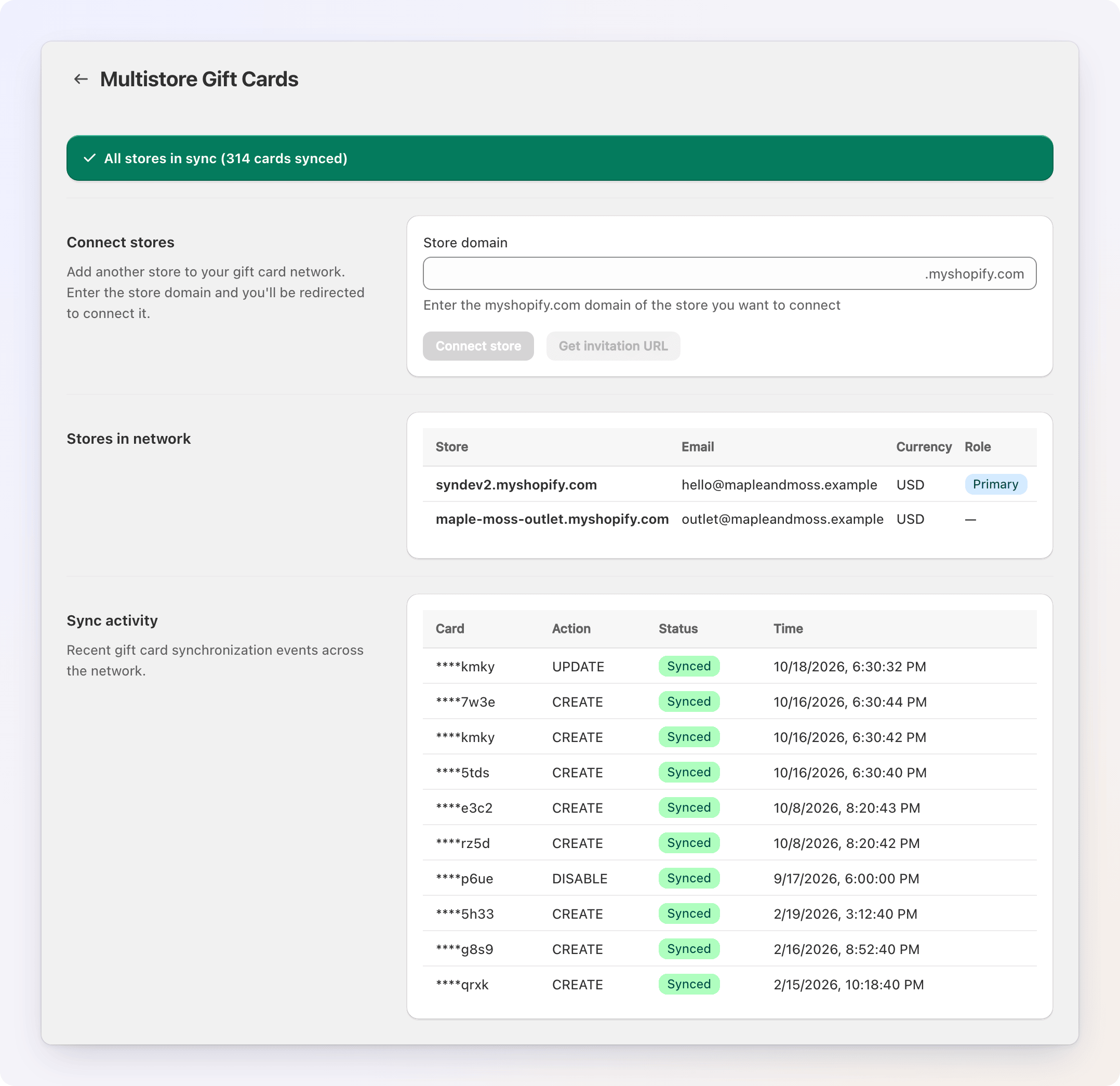
Once a store is in a network, the page shows three things.
Status banner.
- All stores in sync — every card is up to date.
- N cards pending synchronization — Gift Card Hero is still copying cards or balances.
- Sync errors detected — N failed — some cards couldn't be synced. Open Sync activity to see which. If errors stay, contact support.
Stores in network. A table with each store's name, email, currency and role. The primary store has a Primary badge.
Sync activity. The latest sync events: the card (last 4 characters of its code), the action, the status (Synced, Pending or Failed) and the time.
How cards work across stores
- A gift card created through Gift Card Hero in one store (a purchase, a manual card, bulk issuing, POS or the API) is created in the other stores with the same code.
- When a card is used or its balance changes, the new balance is copied to the other stores.
- Cards created directly in Shopify admin aren't known to Gift Card Hero. In Shopify POS, open an order and tap Sync gift card to network, then scan or type the card's code and tap Sync to network.
The customer enters the same code in any store.
Remove a store
- The primary store can remove any other store: click Remove in its row.
- A secondary store can leave: click Leave in its own row.
- The primary store can't be removed while other stores are in the network. Remove them first.
Confirm in the dialog. Cards that were already synced stay in each store, but they are no longer kept in sync.
Considerations
- Analytics — each store's Analytics shows only its own data. There is no combined report.
- Subscriptions — each store pays for its own plan.
Troubleshooting
The invitation page says the link is invalid. Links expire after 24 hours. Generate a new one with Get invitation URL.
A card isn't accepted in another store. Open Multistore Gift Cards and check the status banner and Sync activity. A card shown as Pending or Failed hasn't reached that store yet. If you made the card in Shopify admin, sync it from POS as described above.
A store left the network and its cards no longer update. That is expected. Cards stay in the store but stop syncing.
See also: Multi-Location Retail for running a gift card program across locations.