eGift Cards & Physical Gift Cards
The Gift Cards page is the main configuration area for both digital (eGift) and physical gift cards. Go to eGift Cards in the left navigation.
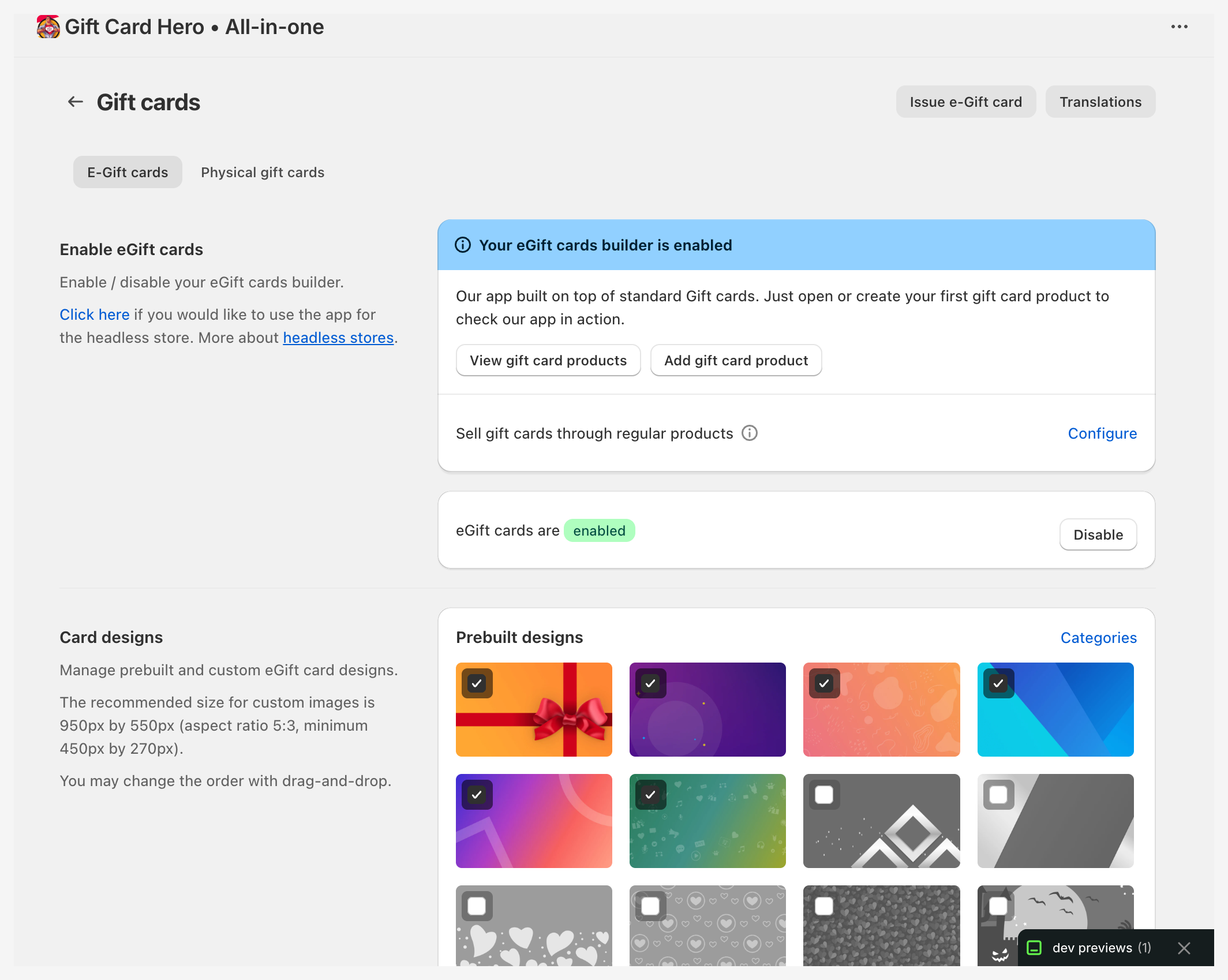
The page has two tabs: E-Gift cards and Physical gift cards.
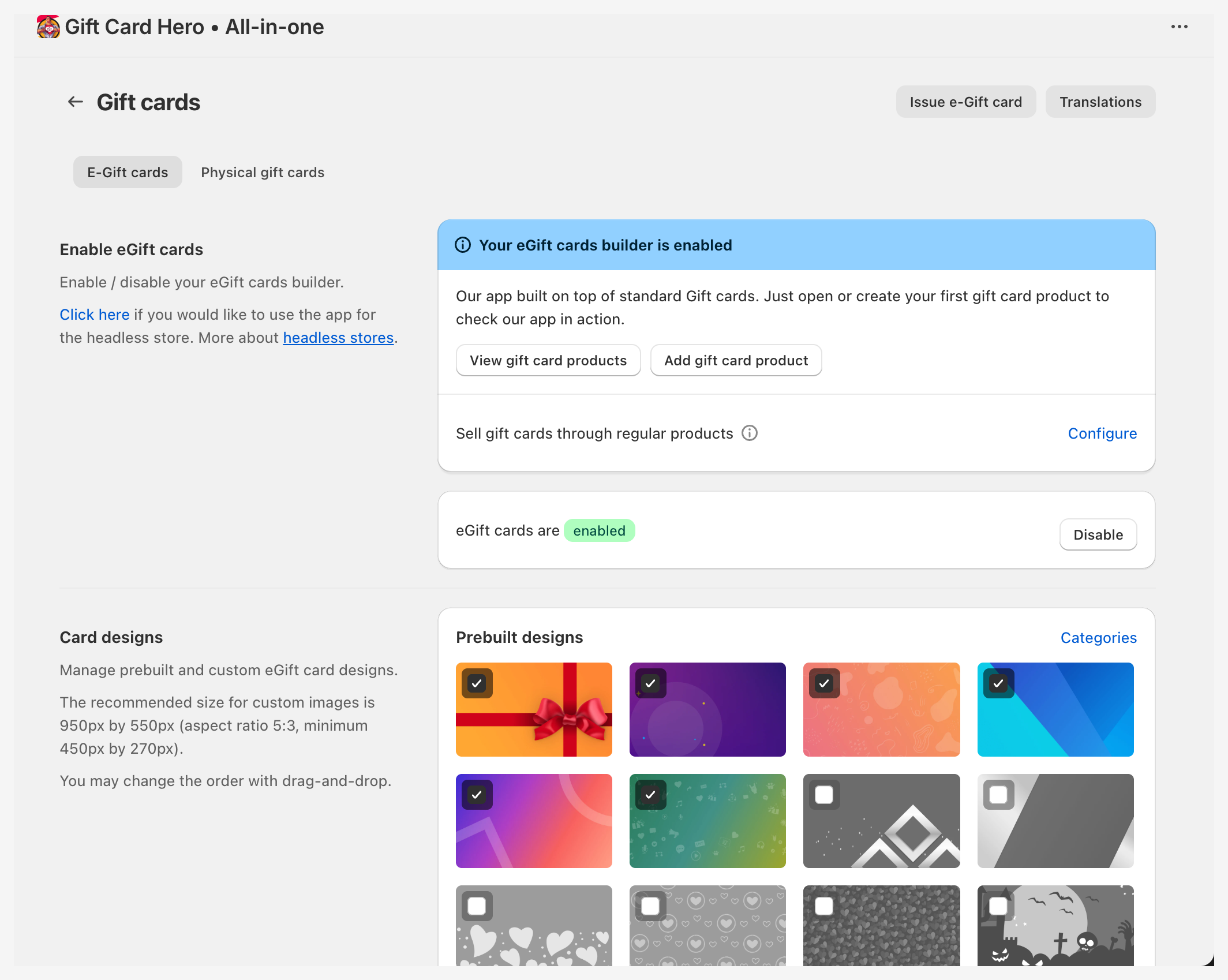
E-Gift Cards tab
Enable / disable
Toggle eGift cards on or off. When disabled, the storefront gift card widget and purchase flow are hidden from customers.
Card designs
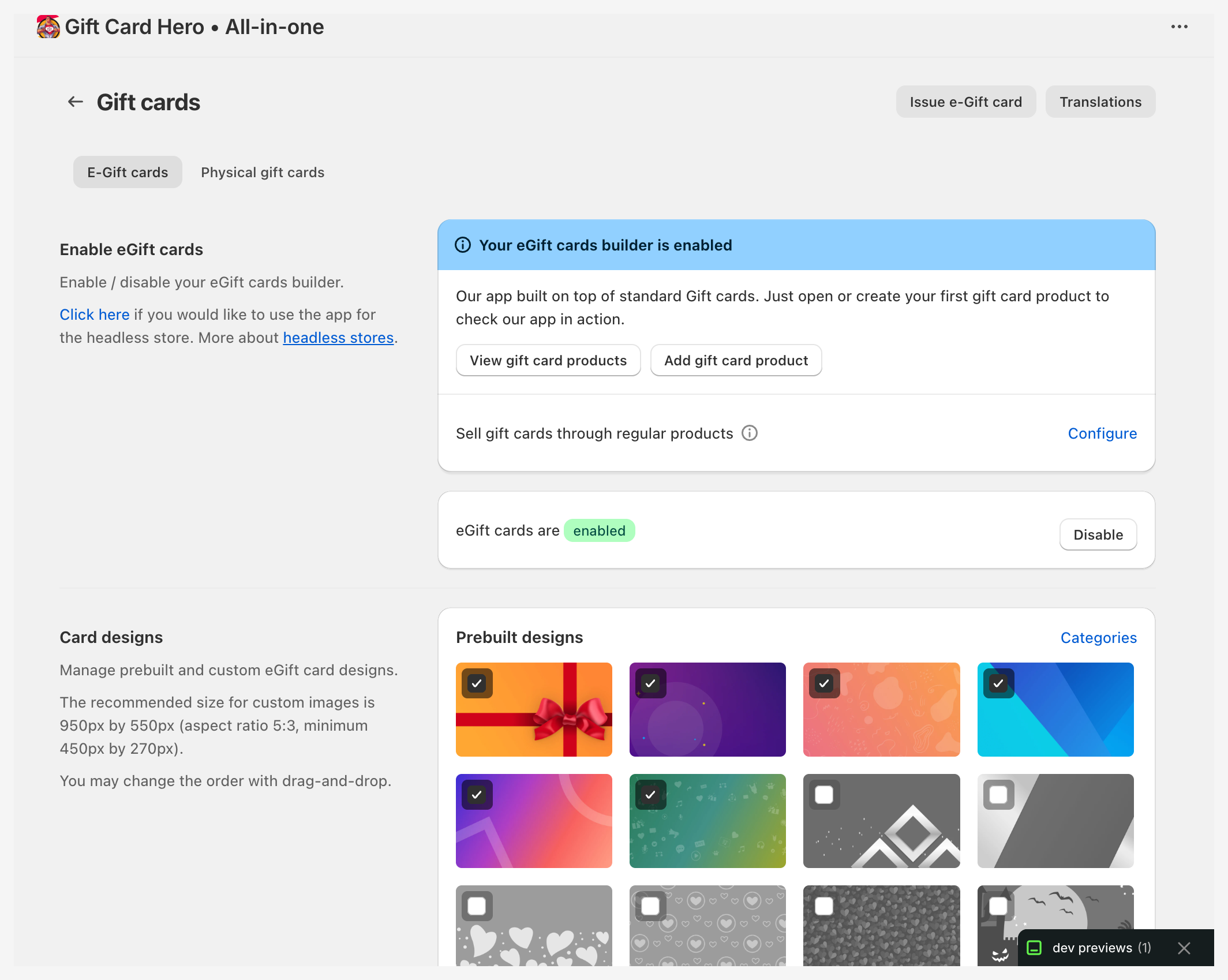
A grid of available design thumbnails. Click a design to select it as the active design for gift cards. The selected design appears in the gift card delivery email and on the gift card page.
To upload a custom design image, click Upload custom card. The image is added to the grid immediately.
Card categories
Organize designs into named groups that customers see on the gift card selection page. Manage categories via the Organize button, which takes you to Card Categories.
Custom amount
Allow customers to enter any amount instead of (or in addition to) fixed denominations.
- Enable custom amount — toggle on to allow buyer-specified amounts
- Custom amount expiration — optionally set an expiry for cards issued with a custom amount
About the helper product: when Custom Amount is enabled, GiftCard Hero automatically creates a helper product in your Shopify catalog (with a small placeholder price like $0.01). Shopify's checkout requires a real product/variant in the cart, so the app puts this helper product there and dynamically rewrites the line item price at checkout to the exact amount the customer entered.
If you see this product appear in your inventory:
- Don't delete it while Custom Amount is enabled - removing it breaks the feature.
- Don't edit its title, price, or variants manually - the app manages it.
- To hide it from the storefront, simply unlist it from the Online Store sales channel (Product → Sales channels → uncheck Online Store). It will no longer appear in collections, search, or via direct URL, while continuing to work for Custom Amount.
- If you turn Custom Amount off later, the helper product can be removed - reach out to support and we'll clean it up for you.
Gift card product
Link the gift card product from your Shopify catalog. GiftCard Hero uses this product to trigger gift card creation when an order is placed. You can also configure one-time purchase products — products that issue a gift card only once per customer.
Automation settings
| Option | What it does |
|---|---|
| Auto-disable on refund | Automatically disable a gift card when its order is refunded |
| Fulfill orders on order creation | Mark the gift card line item as fulfilled immediately when the order is created |
Email copy
Enter an admin email address to receive a BCC of every gift card delivery email. Useful for quality control or record-keeping.
Save codes
When enabled, gift card codes are saved in the order notes for easy reference.
Detailed eGift Card Settings
These options are available in the eGift Cards configuration:
| Setting | Description |
|---|---|
| Allow Scheduled Send | Customers can schedule delivery on a specific date |
| Allow Video Messages | Customers can attach video messages (up to 2 minutes, stored 60 days) |
| Allow Custom Amount | Custom values via draft order with separate checkout |
| Custom Amount Item SKU | Define SKU for custom-amount gift cards |
| Custom Amount Limits | Set min/max values for custom amounts |
| Use Gift Card Product Images | Use uploaded product images as designs (for multiple gift card products) |
| Lock Design for Variant | Restrict designs to specific variants, auto-switching on selection |
| Show Recipient's Name Field | Adds name field on physical card and email |
| Set "Send to Me" as Default | Default tab delivers to checkout email instead of gift recipient |
| Custom "Start Shopping" Link | Replace homepage link on gift card page with custom URL |
| Replace POS QR with Shop Link | Swap POS QR code for store link (for printed vouchers) |
| Hide Gift Cards in Account | Remove auto-generated "My Gift Cards" from customer portal |
| Show Balance Check in Account | Display balance widget in "My Gift Cards" page |
| Disable Page Animation | Turn off envelope animation on gift card page |
| Force One-Time Use | Reset remaining balance to zero after first purchase |
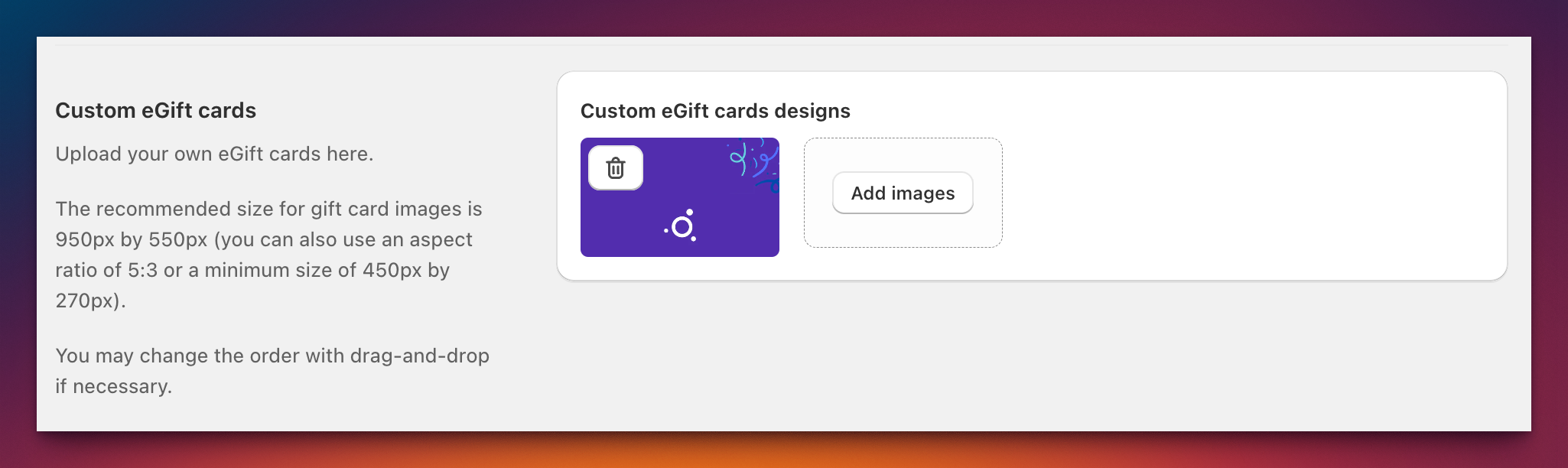
Custom eGift Card Designs
Upload your own designs in JPG, PNG, GIF, SVG, or WEBP formats. Recommended dimensions: 450px x 270px.
Physical Gift Cards tab
Controls physical card code import and management. See Physical Gift Cards for the full import and inventory workflow.
| Option | What it does |
|---|---|
| Enable physical gift cards | Toggle to activate the physical card feature |
| Add physical codes | Open the import modal to upload card codes via CSV |
| Email copy | Admin email to receive a BCC of physical card emails |
| Auto-disable on refund | Disable a physical card code when its order is refunded |
Header actions
These buttons appear at the top of the page:
| Button | Where it goes |
|---|---|
| Issue e-Gift card | Opens the manual card issuance form (see below) |
| Order physical gift cards | Link to Shopify's hardware store to order physical cards |
| Translations | Opens Design & Translations to customize language strings |
Issuing a gift card manually
To send a single gift card directly to a customer — for example, as a goodwill gesture or compensation:
- Click Issue e-Gift card in the page header
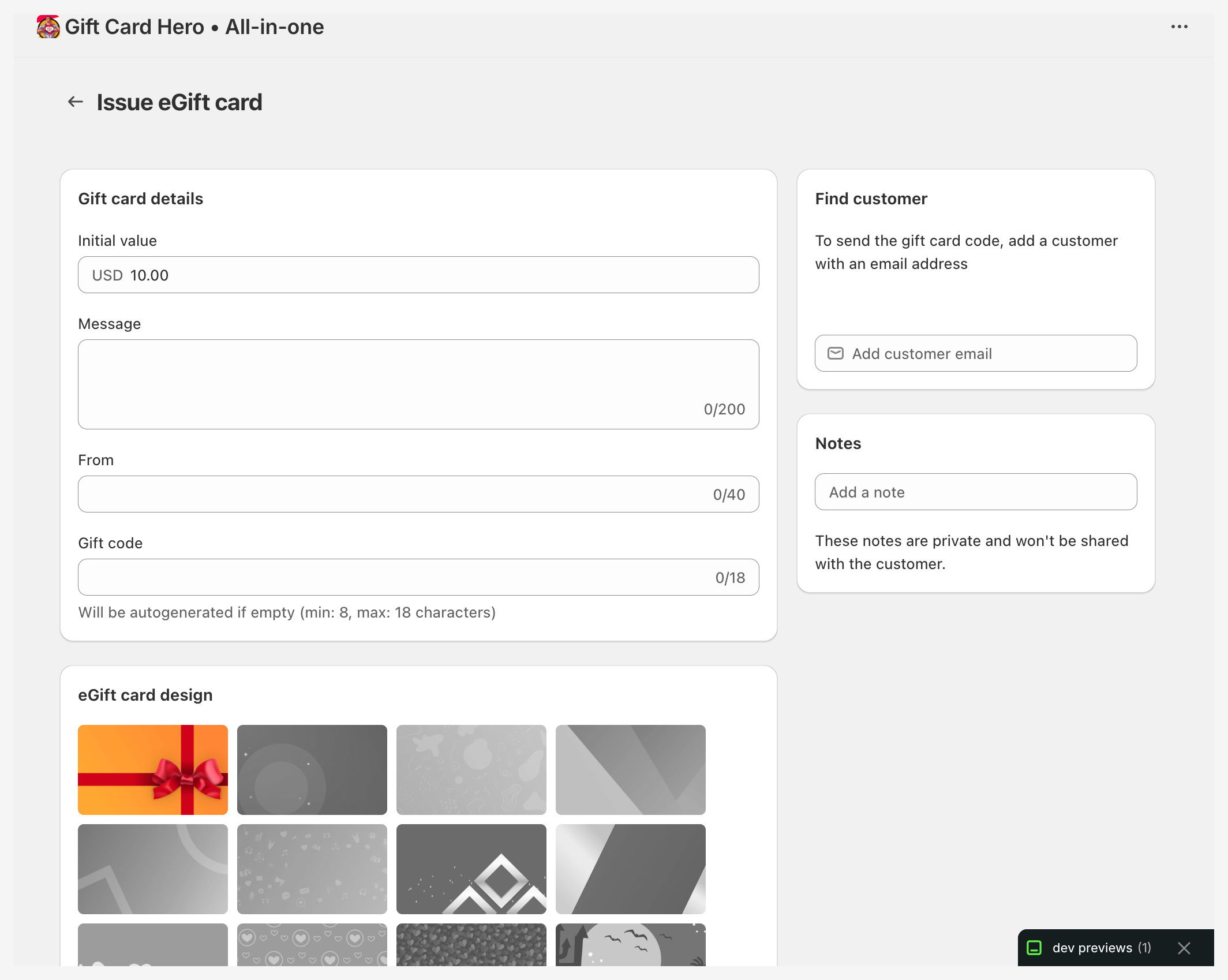
- Fill in the form:
| Field | Notes |
|---|---|
| Initial value | Amount the card is issued with |
| Currency | Shown next to the value only when your Shopify Markets enable more than one currency. Pick the currency the card is issued in — it cannot be changed afterwards. |
| Message | Optional personal message (up to 200 characters) |
| From | Sender name shown in the email (up to 40 characters) |
| Gift code | Leave blank to auto-generate, or enter a custom code (8–20 characters) |
| Card design | Select from the available design thumbnails |
| Recipient email | Optional. Where the gift card email is sent. Leave it empty to just issue the card — nothing is emailed and the card is filed under no customer. |
| Recipient name | Shown in the email greeting |
| Send date / time | Schedule delivery for a future date, or leave blank to send immediately |
| Notes | Internal note — not visible to the recipient |
- Click Send gift card
The card is created in Shopify and, when you gave a recipient email, the delivery email is sent to them on the scheduled date and time. Without a recipient the card is simply created and nothing goes out.
Either way the full code appears on the page with a Copy button. Copy it before you leave — it is not shown again: the app stores codes encrypted, and Shopify's admin keeps only the last four characters.
Cards over 2,000
Shopify issues at most 2,000 in your store currency (or the local equivalent) on a single card. To issue more, first enable Increase limit in Reload Balance settings — the app then uses it to raise the cap, up to 10,000. Without it, a larger amount is refused before anything is created.
Advanced Settings
Go to eGift Cards → Advanced Settings for additional technical options.
Shopify Markets support
Available when your store sells in more than one currency through Shopify Markets.
| Setting | What it does |
|---|---|
| Enable Shopify Markets support | Converts gift card amounts to the customer's local currency on the storefront, following your Markets settings |
| Cross-currency redemption | What happens when a card is presented in a currency other than the one it was issued in |
Cross-currency redemption applies to every card this app issues, including bulk import, generate and mass send:
| Option | Behaviour |
|---|---|
| Shopify default | Shopify decides, based on your store and market settings |
| Only in the card's own currency | The card is refused at checkout in any other currency |
| Convert at your market's exchange rate | Uses the rate configured for that market |
| Convert at the spot exchange rate | Uses the standard spot rate at the time of checkout |
To issue cards in a specific currency, see Issuing cards in other currencies.
Regular products as gift cards
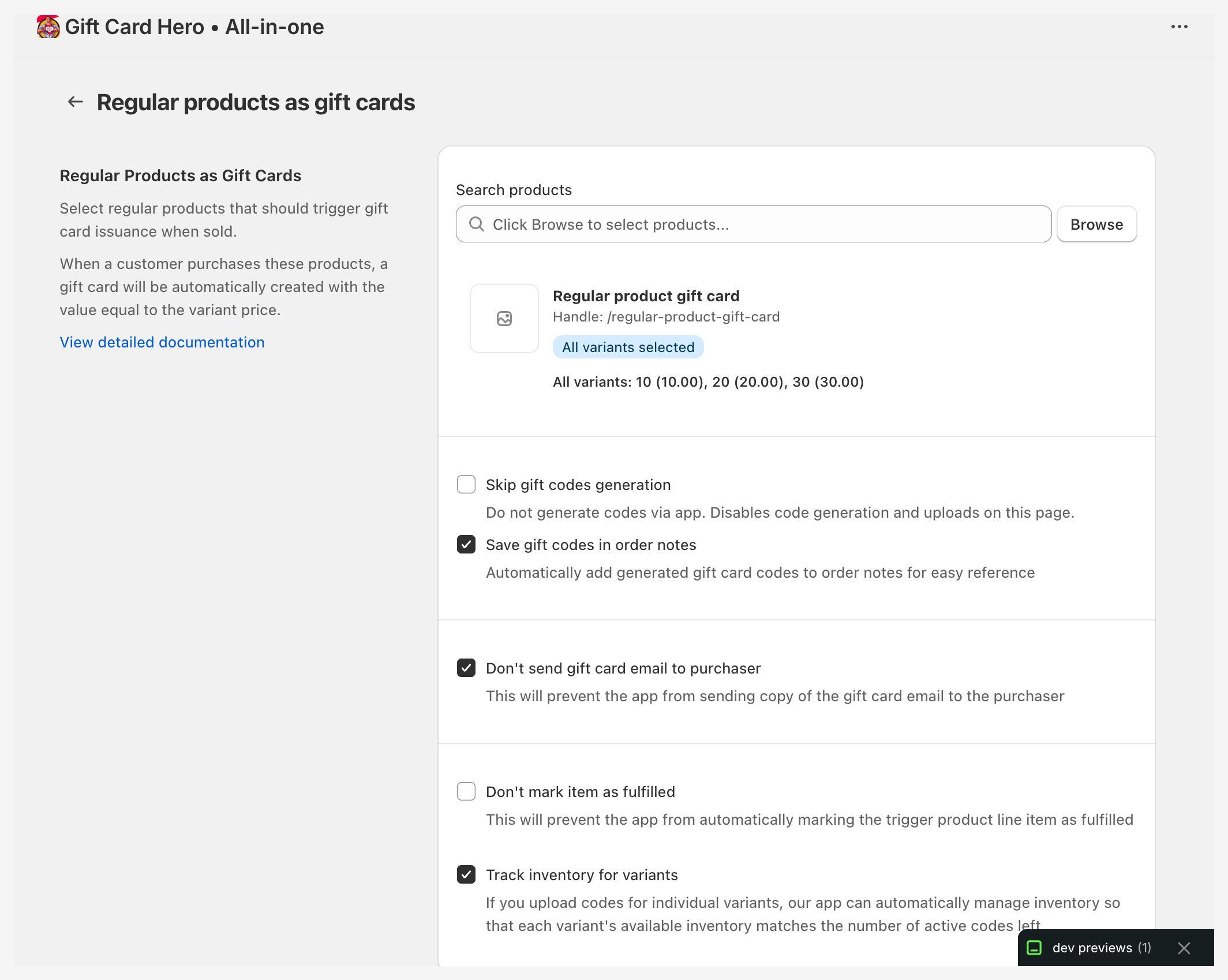
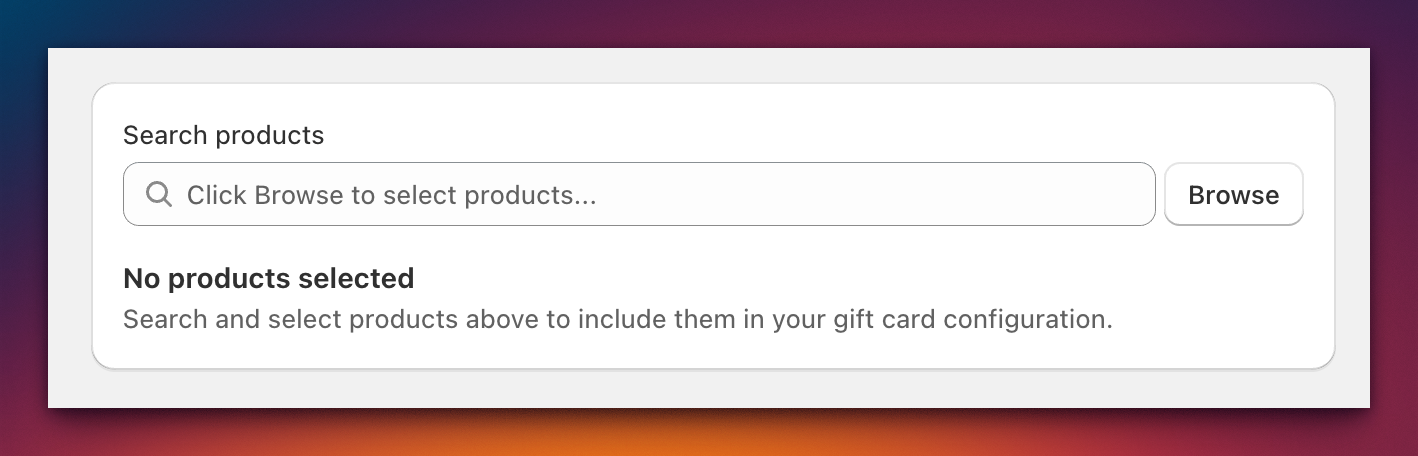
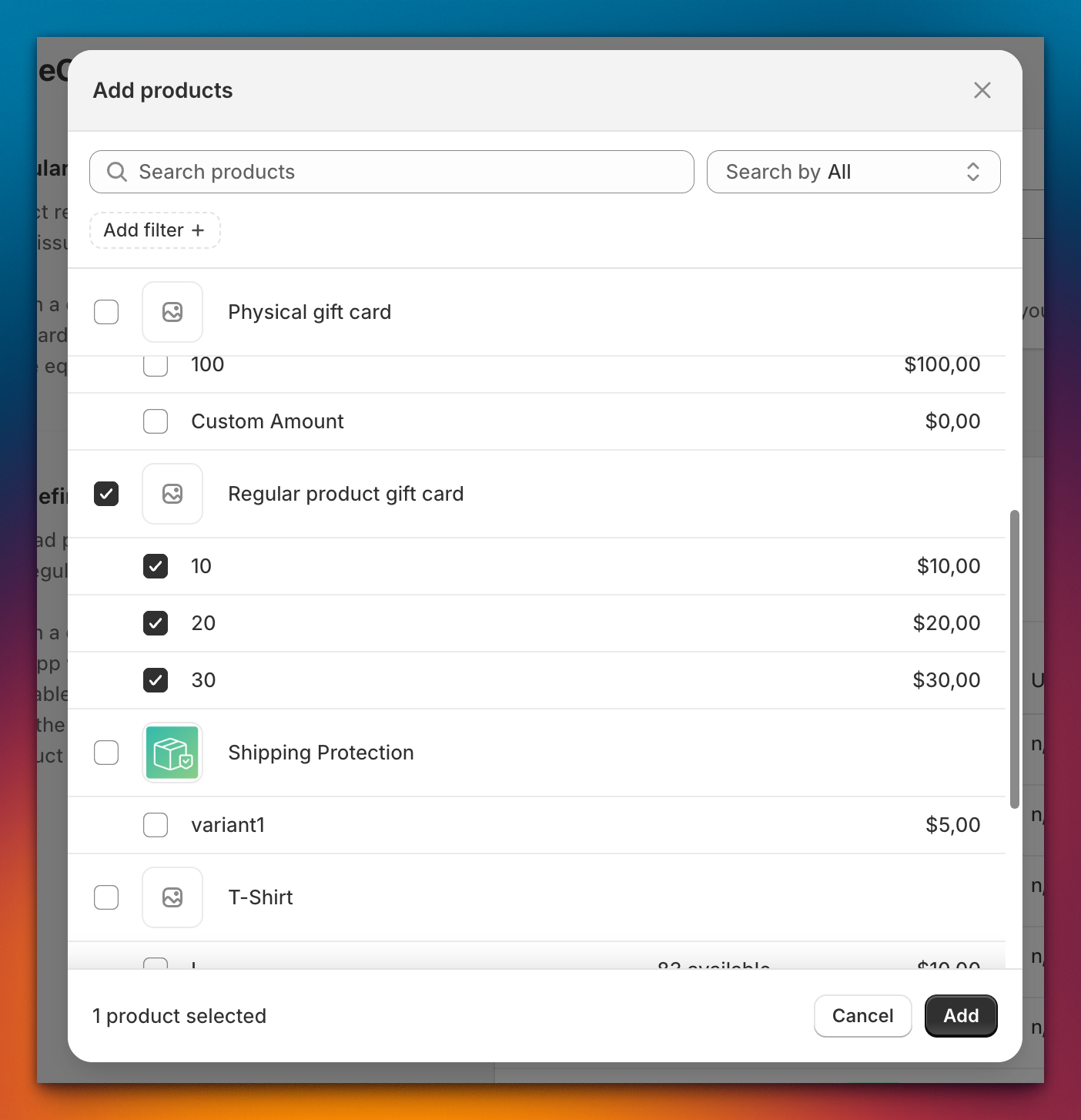
Select any Shopify products to behave as gift cards. When one of these products is purchased, GiftCard Hero generates a gift card code instead of fulfilling a physical item.
Variant selection types
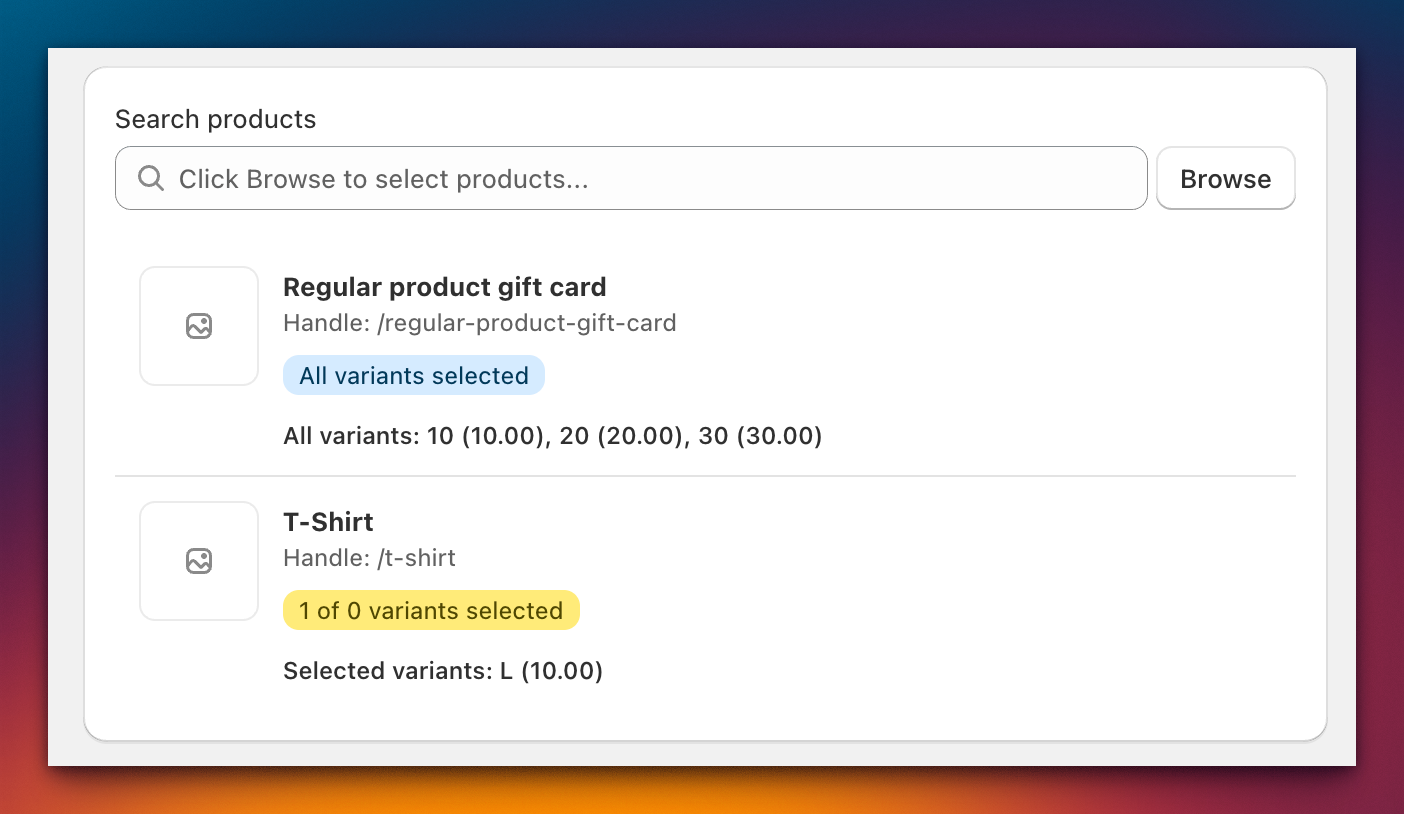
- All Variants (Blue Badge): The entire product triggers gift card creation
- Partial Variants (Orange Badge): Only specific variants trigger it, showing "X of Y variants selected"
For each selected product you can configure:
| Option | Description |
|---|---|
| Skip gift codes generation | Don't generate a Shopify gift card code — use this if you manage codes externally |
| Save gift codes in order notes | Include the generated code in the Shopify order notes |
| Don't send gift card email to purchaser | Suppress the confirmation email to the buyer |
| Don't mark item as fulfilled | Keep the line item unfulfilled after gift card issuance |
| Track inventory for variants | Enable Shopify inventory tracking on the product's variants |
Predefined gift codes
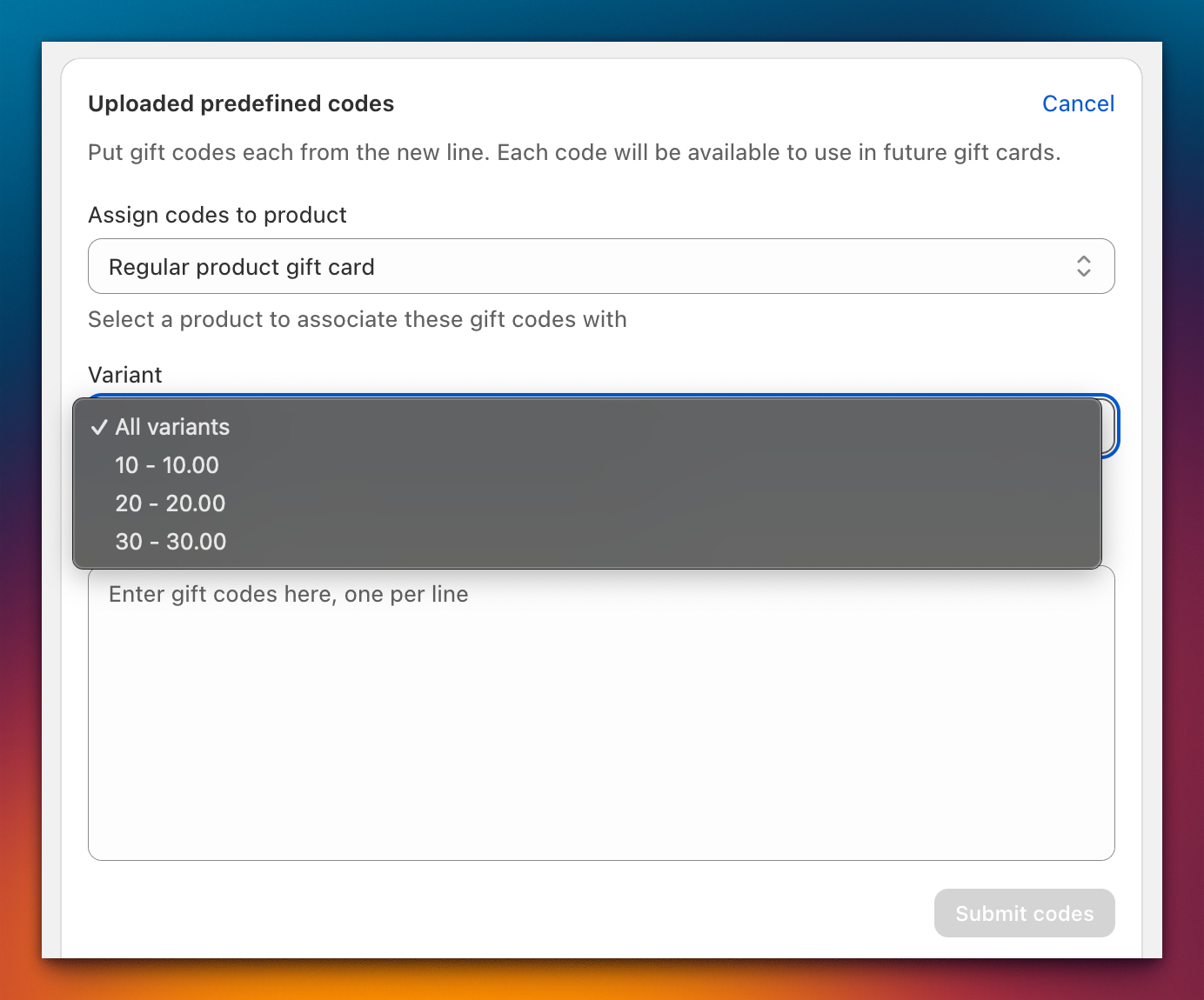
Upload a list of pre-made codes. GiftCard Hero assigns them to orders in sequence, instead of generating random codes. This is useful when codes are pre-printed on physical cards.
- Select the product and variant these codes belong to
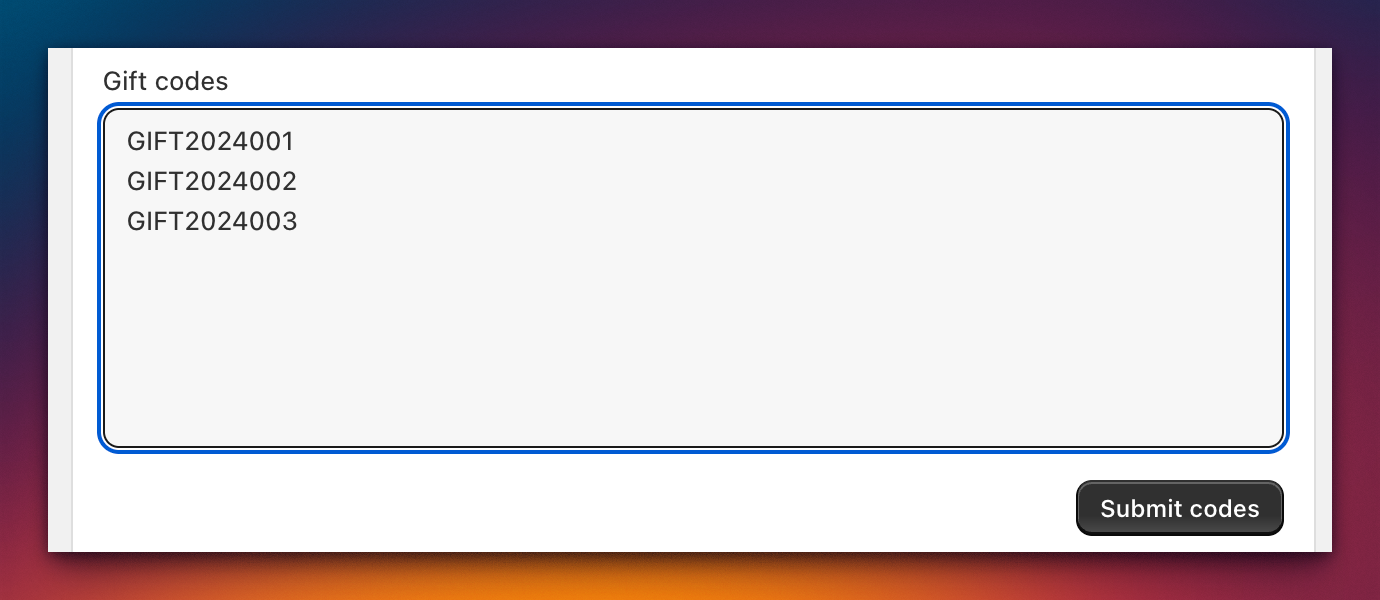
- Paste codes into the text area (one per line)
- Click Submit codes
The code table shows each uploaded code with its status (unused / used), registration date, and the order it was assigned to.