Dashboard & Analytics
The GiftCard Hero analytics dashboard gives you a view of how your gift card program is performing. Go to Analytics in the left navigation.
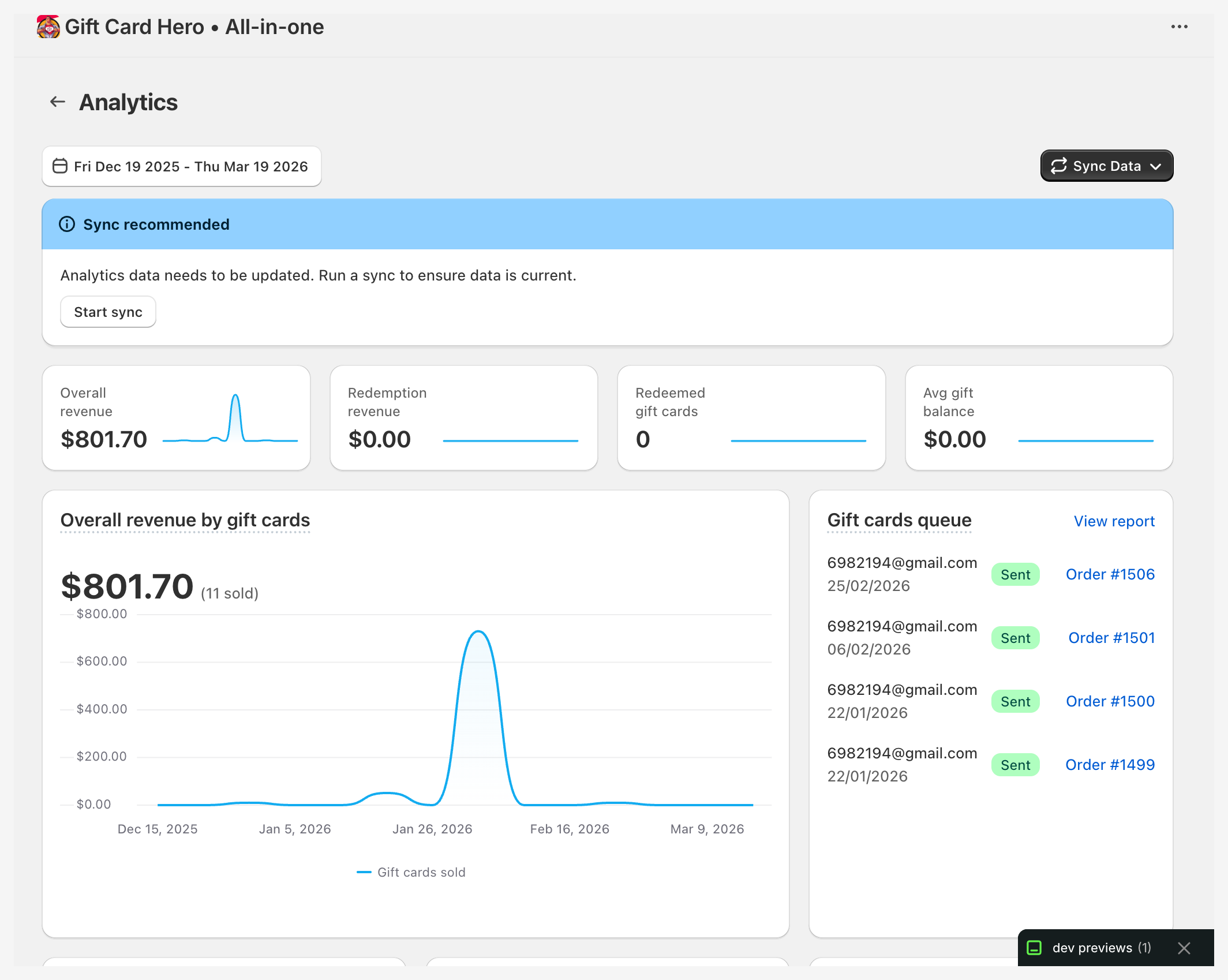
Date range
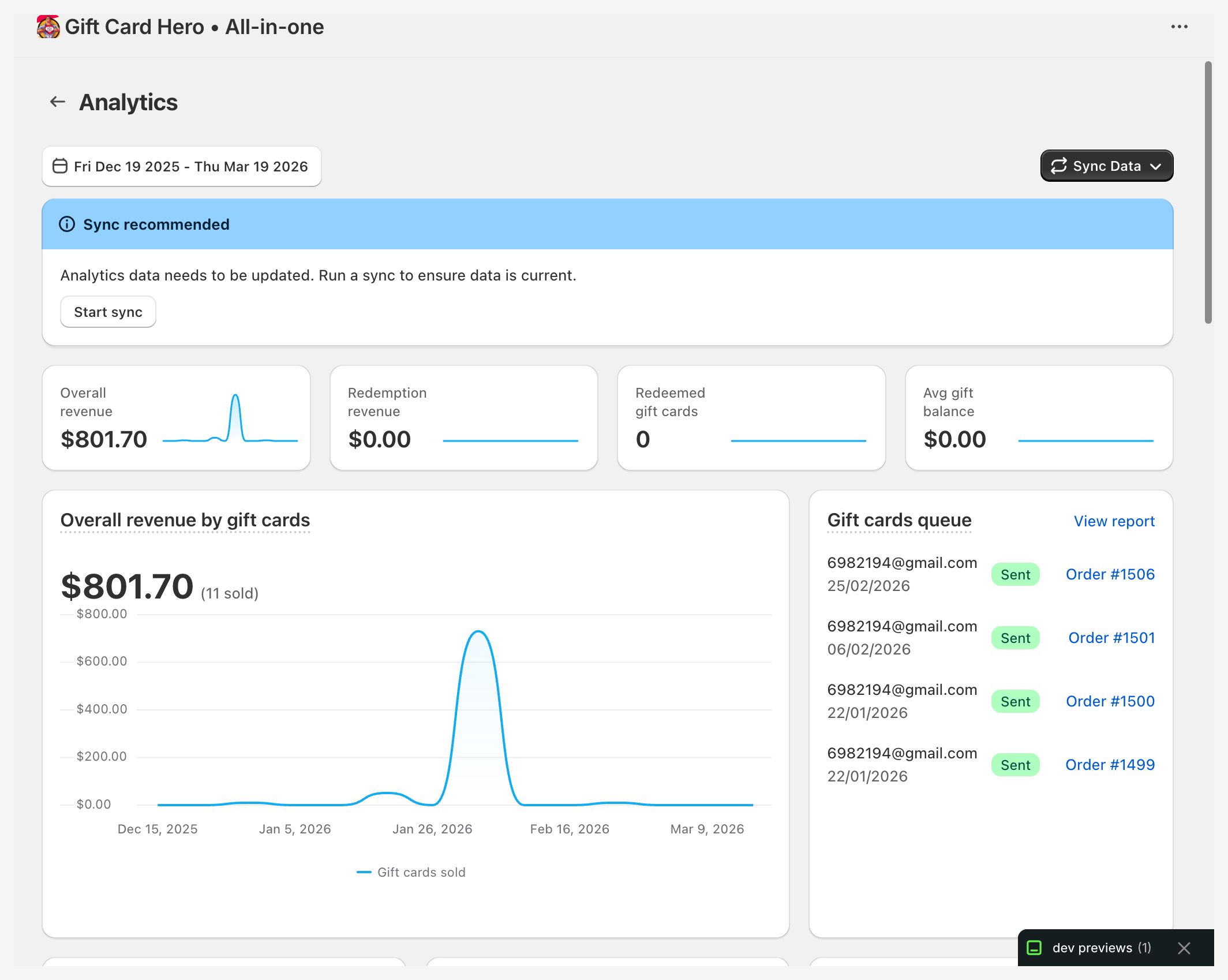
Use the date range picker at the top of the dashboard to set the reporting period. Select start and end dates to see metrics for any time window.
Key metrics

Gift cards queue
Shows pending and sent gift cards — cards that are in flight or recently issued.
Redemption revenue
Total value of gift cards applied at checkout during the selected period. This is the actual revenue attributed to gift cards being spent.
Sales lift / Overspend
The extra revenue generated because customers spent more than their gift card value. For example, if a customer has a $50 card and spends $78, the lift is $28.
Sales lift is a key metric showing the real economic value of your gift card program — it measures revenue beyond the face value of cards sold.
Unused vs. used balance
A donut chart showing the proportion of total issued value that has been redeemed versus still outstanding.
Redeemed gift cards count
Number of gift cards that have been at least partially redeemed in the selected period.
Orders paid with gift cards
A detailed list of orders where a gift card was used as payment, including customer information and order links (opens in Shopify Admin).
Unused balance reminders
Count of reminder emails sent and scheduled in the selected period. See Unused Balance Reminders for configuration.
Average gift balance value per order
The average remaining balance on gift cards applied to orders — useful for understanding how much of the card value customers typically use in one transaction.
Redemptions amount (daily)
A daily breakdown of redemption amounts over the selected period.
Gift cards in other currencies
If your store issues gift cards in more than one currency, a note appears above the tiles listing those cards per currency, with how many there are, how much they were issued with, and how much is left on them.
They are deliberately left out of the tiles: every figure on the dashboard is in your store currency, and adding EUR to JPY would produce a number in no currency at all. The note is there so the money is visible rather than silently missing. See Issuing cards in other currencies.
Gift Card Transactions report
A detailed transaction-level report (requires the read_all_orders scope). If this scope isn't granted, a prompt appears to enable it.
Above the table, three figures cover the whole selected period — not just the page you are looking at:
- Issued — the face value of gift cards created in the period.
- Topped up — value added to existing cards: top-ups, adjustments, and credits back to a card from a refund.
- Redeemed — value spent from cards in the period.
Issuing a card is not a transaction in Shopify, so "how much value was loaded" is Issued + Topped up. The two are shown separately so you can tell a new card's face value from money added to a card a customer already had.
Filtering by customer
Use the Customer box at the end of the filter row to answer questions like "how much did I top up this customer's gift cards last month". Search by name or email (or paste a customer ID from the admin URL), and the report — the figures, the table and the CSV export — narrows to that customer's cards.
What "this customer's cards" means: a gift card belongs to a customer only when Shopify has one attached to it. Cards issued in bulk, imported, or created by hand without a buyer have no customer at all, and no report can attribute them to one. On many stores that is a large share of the cards, so an empty result here usually means the cards were never attached rather than that nothing happened.
All / Top-ups / Redemptions, between the date picker and the customer box, narrows the list to one kind of row. It narrows the list only: the three figures above always cover the whole period, so you can read a customer's top-ups against what they spent.
Each row shows its type, and amounts are signed: + for value added to a card. A card issued in another currency shows its balance and transactions in that currency, marked with the currency code next to the card.
Both filters are kept in the page URL, so a filtered report can be bookmarked or pasted into a message to a colleague. Click a card's number to open it in Shopify.
CSV export
Export to CSV downloads every row in the period (not just the page), with the customer filter applied if one is set. Two columns help with reconciling:
- Type —
Credit(value added),Debit(value spent), orOrder(Shopify's order-side copy of a spend). - Customer ID — filled in when the export was filtered to a customer.
Top customers report
Answers the other half of the question: not "this customer", but who the store loaded gift card value onto in the period. Each line shows a customer, the cards issued to them in the period, their face value, and everything topped up onto their cards. Sort by either column, and click a line to open the Gift Card Transactions report filtered to that customer and period.
Unassigned cards appears as its own line at the end of the table. These are the cards with no customer attached — bulk, imported or manually issued. They are shown rather than dropped, because on most stores they carry a large part of the loaded value: without that line, the column would not add up to the Added to gift cards tile for the same period.
Redemptions are deliberately not part of this report. Spends are recorded twice by Shopify (once by the gift card, once by the order), and only the transactions report untangles that reliably — so for what a customer spent, open their line and read it there.
Data sync
GiftCard Hero syncs analytics data from Shopify in the background. The sync status is shown as a progress banner when a sync is in progress.
Triggering a sync
Click the Sync Data button to manually trigger a sync. Options:
- Sync for period — syncs data for the selected date range only
- Sync for all time — syncs all historical data from the beginning (use this after first install or if data looks incomplete)
Sync progress is shown as a percentage. You can leave the page — sync continues in the background.
First install
After installing GiftCard Hero, the dashboard may show $0 for all metrics until the initial sync completes. The all-time sync can take up to 24 hours for stores with large order history.
Full Report
Click View Report next to any metric to open the detailed report page for that section. The full report includes transaction-level data and can be filtered by date.
Understanding your numbers
Dashboard shows $0 after install
The analytics sync hasn't run yet. Click Sync Data → Sync for all time and wait for the sync to complete (up to 24 hours for large stores).
Sales lift shows 0 or very low
Sales lift is only calculated for orders where the gift card covered less than 100% of the order total. If all customers are using cards that cover the entire order (e.g., a $25 card on a $25 order), lift will be zero. This is normal for low-denomination cards or high-value baskets.
Totals look lower than expected on a multi-currency store
Cards issued in a currency other than your store currency are not counted in the tiles — they are reported in their own note above them. This is by design; see Gift cards in other currencies.
Redemption revenue doesn't match Shopify's reports
GiftCard Hero syncs data from Shopify's API. Minor differences can occur due to sync timing or orders that were edited after being placed. Run a manual sync to refresh.