Selling Discounted Gift Cards
Create appealing discounted gift cards by combining Shopify's automatic discount feature with specialized pricing.
Part 1: Creating Automatic Discounts
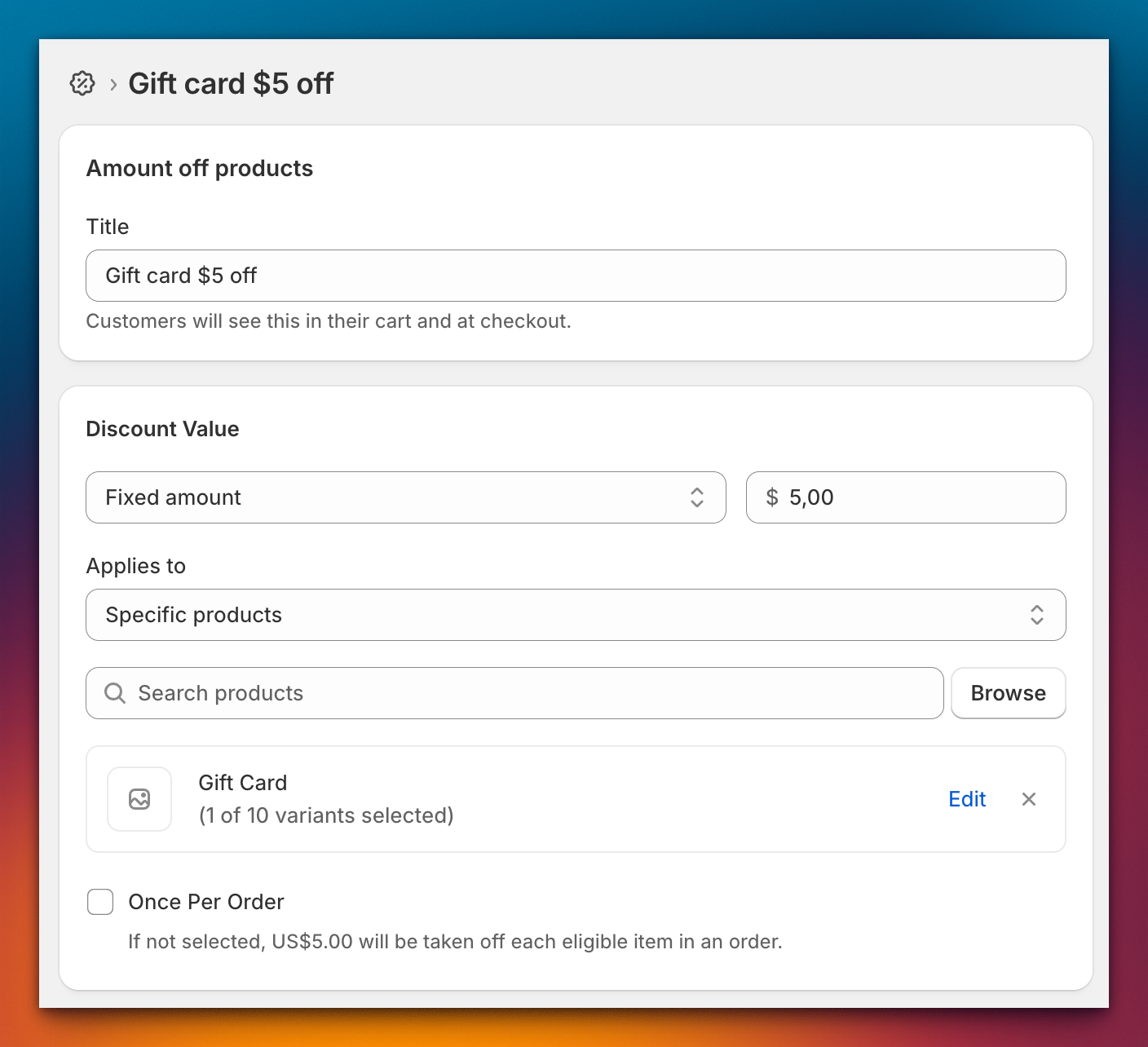
- Go to Shopify Admin → Discounts → Create discount → Automatic discount
- Select Amount off products
- Set the discount value (e.g., $25 off)
- Under Applies to, select Specific products and choose your gift card products
- Set optional conditions: minimum purchase, customer eligibility, usage limits, active dates
- Save and ensure status shows Active
Part 2: Configure Compare At Prices
Gift Card Hero uses an inverted pricing structure for discounted cards:
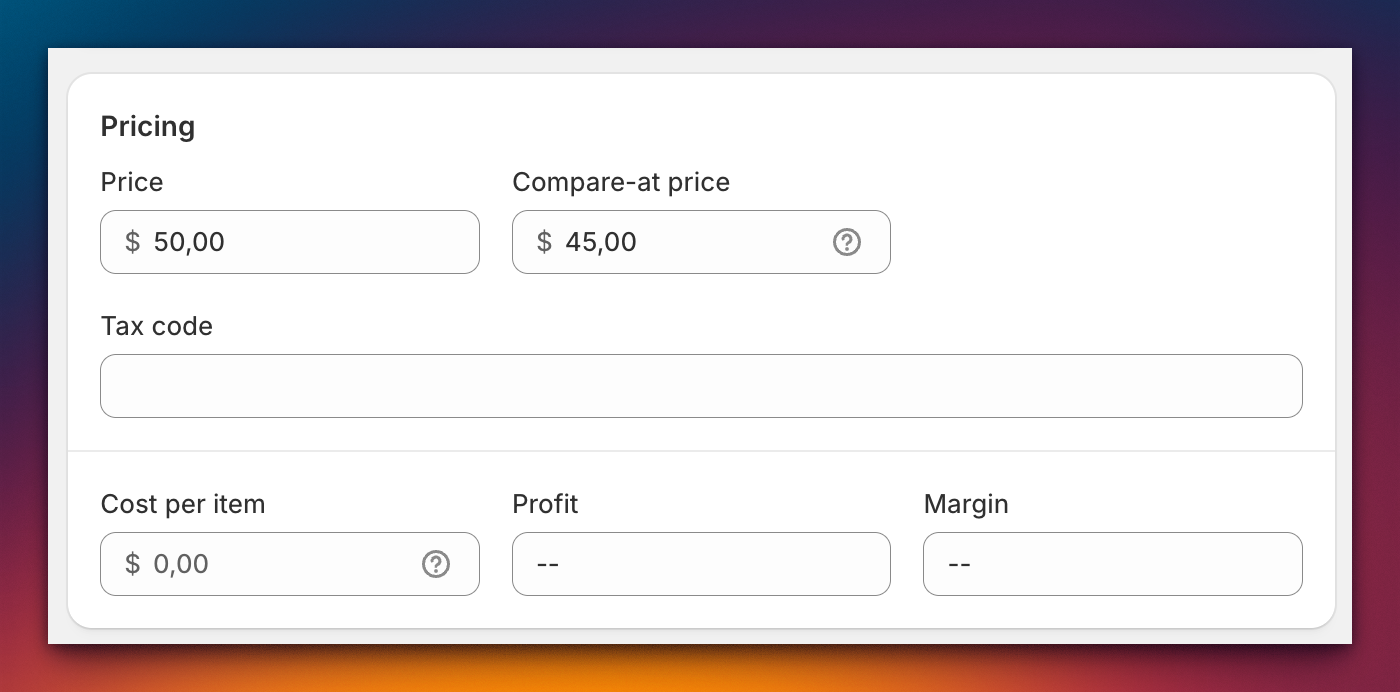
- Price field = full face value of the gift card
- Compare At Price = discounted price customers actually pay
Important: This is inverted from typical Shopify products where compare-at price is usually higher.
Configure each variant:
- Go to Products → find your gift card → Variants
- Set Price = full face value (e.g., $100.00)
- Set Compare at price = discounted price (e.g., $75.00)
Example pricing
| Gift Card Value | Price Field | Compare At Price | Customer Pays | Savings |
|---|---|---|---|---|
| $25 | $25.00 | $20.00 | $20.00 | $5.00 |
| $50 | $50.00 | $40.00 | $40.00 | $10.00 |
| $100 | $100.00 | $75.00 | $75.00 | $25.00 |
Part 3: Verify Your Setup
Check on your storefront:
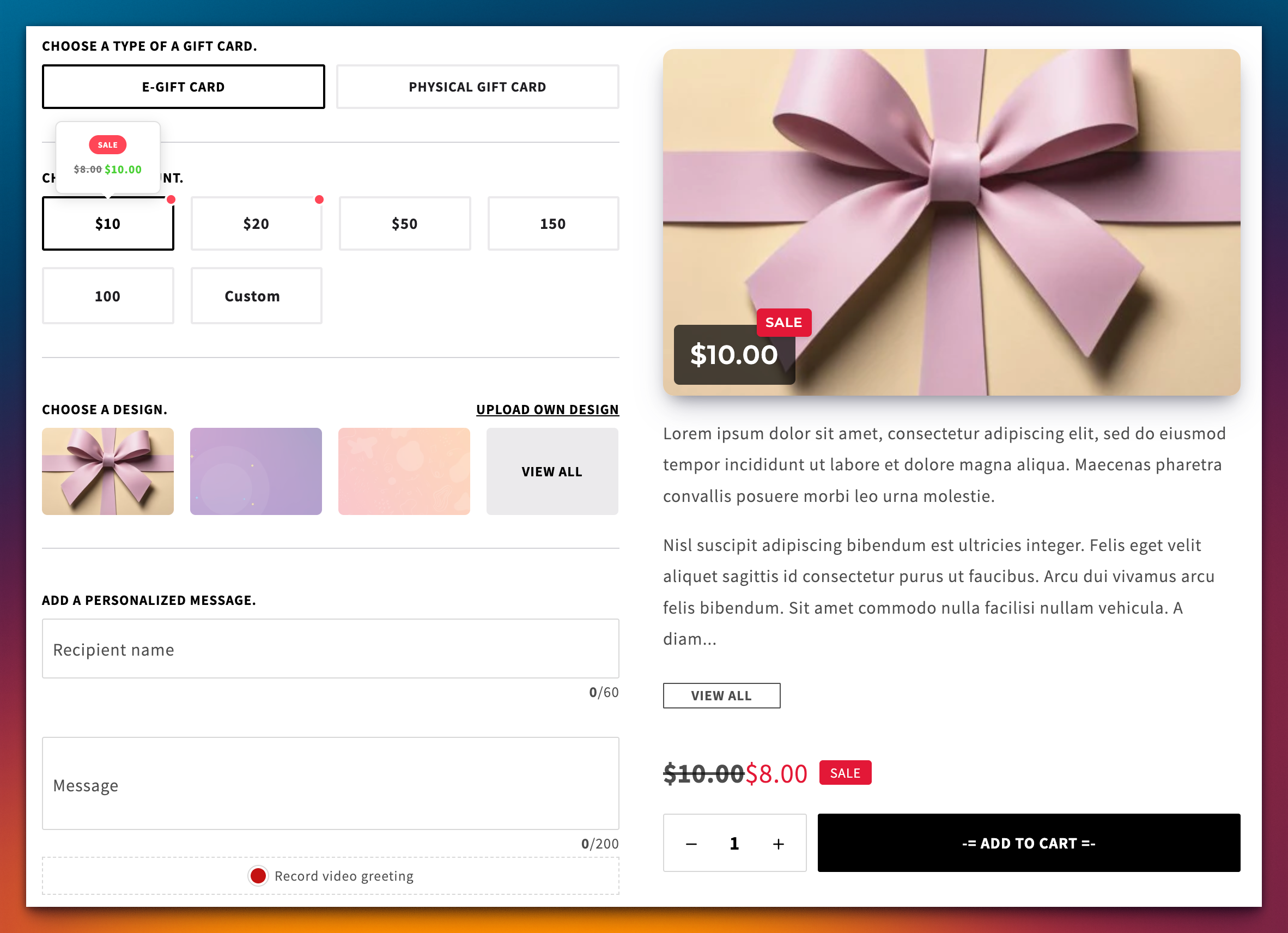
- Sale badge appears on discounted variants
- Crossed-out original price displays correctly
- Actual purchase price matches compare-at price
Troubleshooting
- Sale badge not appearing: Check that compare-at price is set and less than regular price
- Wrong price displayed: Verify price inversion (face value in price, discount in compare-at)
- Discount not applying at checkout: Check discount active dates, usage limits, customer eligibility
Best Practices
- Use consistent discount percentages across denominations
- Set active dates for seasonal promotions
- Always test with a small purchase before launching