How Customers Redeem Rewards
Loyalty rewards are issued as store credit. To spend it, a customer copies their personal rewards code and enters it at checkout, the same way they'd use a gift card.
No automatic checkout discount in this version
Rewards are not applied to the cart automatically. The customer reveals their code and enters it at checkout themselves. This keeps the balance under the customer's control and works with Shopify's standard checkout.
Where customers see their balance
Customers can view their rewards in two places. Both show a Rewards tab next to their gift cards.
In their account
In the customer account, the gift cards page has two tabs: Gift Cards and Rewards. The Rewards tab (the page heading changes to Loyalty Rewards) shows the loyalty balance.
On your storefront
If your storefront has the My Cards page, it shows the same Gift Cards and Rewards tabs. The Rewards tab displays the balance and history there too.
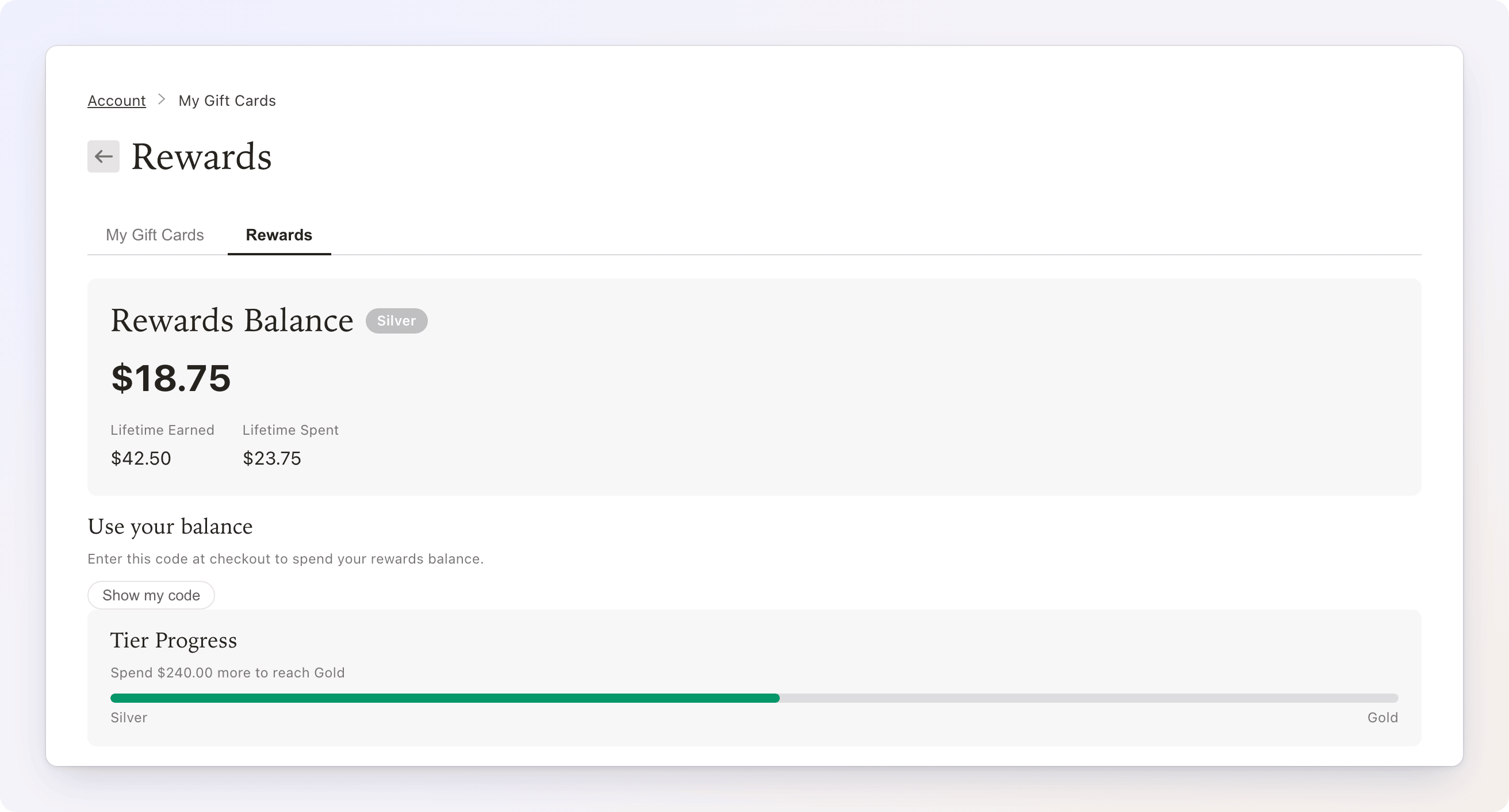
Both surfaces show the same information:
- Rewards Balance — the current spendable amount, with the customer's tier badge.
- Lifetime Earned — all credit the customer has been given.
- Lifetime Spent — the rewards the customer has redeemed. This is not their total purchases; the amount that counts toward tiers is tracked separately (see Tiers).
- Tier Progress — a bar toward the next tier ("Spend $X more to reach Gold"). It appears only when there is a higher tier to reach.
- Transaction History — the changes to the balance, newest first.
Referral Program placeholder
The customer account also shows a Referral Program banner that says referral rewards are coming soon. Referrals are not part of Loyalty yet, so the banner is informational only.
Getting the redemption code
Because the code lets anyone spend the balance, it stays hidden until the customer asks for it.
- On the Rewards tab, find the Use your balance card. It appears only while the balance is above zero.
- Click Show my code.
- The code appears, grouped in fours for easy reading.
- On the storefront, the customer clicks the code to copy it. It shows Copied! to confirm.
- In the customer account, the code sits in a read-only Gift card code field, with a Show QR button that displays it as a scannable QR code — handy for redeeming in person with Shopify POS. A Show code button switches back.
Each customer has one personal code for their whole rewards balance. It does not change when new rewards arrive.
Spending it at checkout
- The customer adds items to their cart and goes to checkout.
- In the Discount code or gift card field, they enter (or paste) their rewards code.
- Shopify applies the balance to the order.
If the order total is higher than the balance, the customer pays the rest with another method. Any leftover balance stays on their account for next time.
Credit that was issued with an expiry date is spent oldest-expiring first, so customers use up credit before it lapses. See the Money FAQ for how expiry works.
The transaction history
The history lists the 20 most recent changes to the balance. Customers can filter it by All, Earned, Spent, or Expired. Entries of the other types — Reversed and Adjustment — appear under All.
| Label | Meaning |
|---|---|
| Earned | Credit added by a reward |
| Spent | Credit used at checkout |
| Expired | Unspent credit that reached its expiry |
| Reversed | Credit taken back, for example after a refund (shown in red with a minus sign) |
| Adjustment | A manual change to the balance, shown with a plus or minus |
Each entry shows the name of the workflow that created it (or the source, if there is none) and the date. When the entry has a note, such as the one you wrote in an Issue Credit action, the note appears underneath. Bookkeeping entries that moved no money are not shown.
For the merchant view of the same activity, see Recent activity on the Loyalty Dashboard.
Showing or hiding the rewards section
You control whether the customer-facing rewards section appears at all.
- From the Loyalty Dashboard, open Settings.
- In the General card, toggle Show the rewards section in the customer account.
- Save.
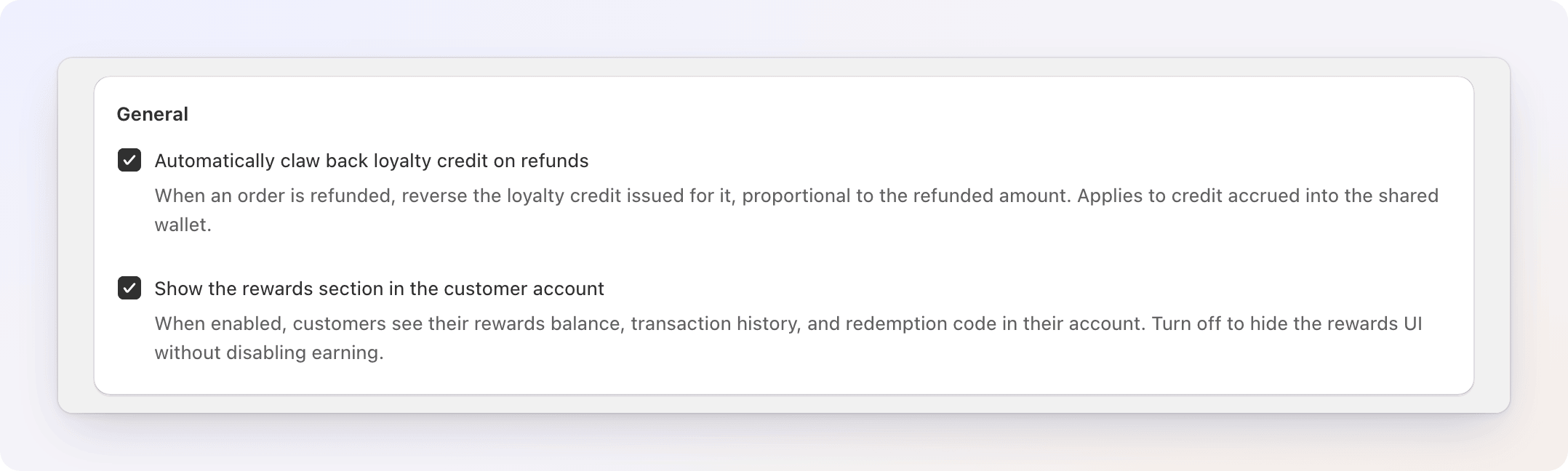
When it's off, the Rewards tab is hidden from customers everywhere and the code can no longer be revealed there. Customers keep earning behind the scenes, and turning the setting back on shows their accumulated balance. A customer who already saved their code can still spend it at checkout. Use this setting as a quick way to hide the program, for example while you're still setting it up.
Troubleshooting
A customer sees "Start earning rewards" instead of a balance. They have not received a reward yet. The balance, the Use your balance card, and the history appear after their first reward.
A customer sees "Your rewards code isn't available yet. Please contact support." Their rewards account was created before codes could be shown, so the code cannot be recovered. Contact support so the account can be re-issued.
A customer says the Rewards tab is missing. Check Show the rewards section in the customer account in Loyalty Settings. Also ask the customer to sign in: the tab is only for signed-in customers.
A customer says the code was rejected at checkout. Make sure they entered the whole code and that the balance is above zero. A balance of zero hides the Use your balance card, and expired credit can no longer be spent.