Loyalty Emails
A workflow's Send Message action can start its email from one of your own saved templates, not just the four built-ins. Loyalty emails is where you create, edit and manage them.
From the app home, open the Customer notifications card (Configure notifications), then choose the Loyalty emails tab. From a workflow's email step you can also click Manage templates to open it in a new tab.
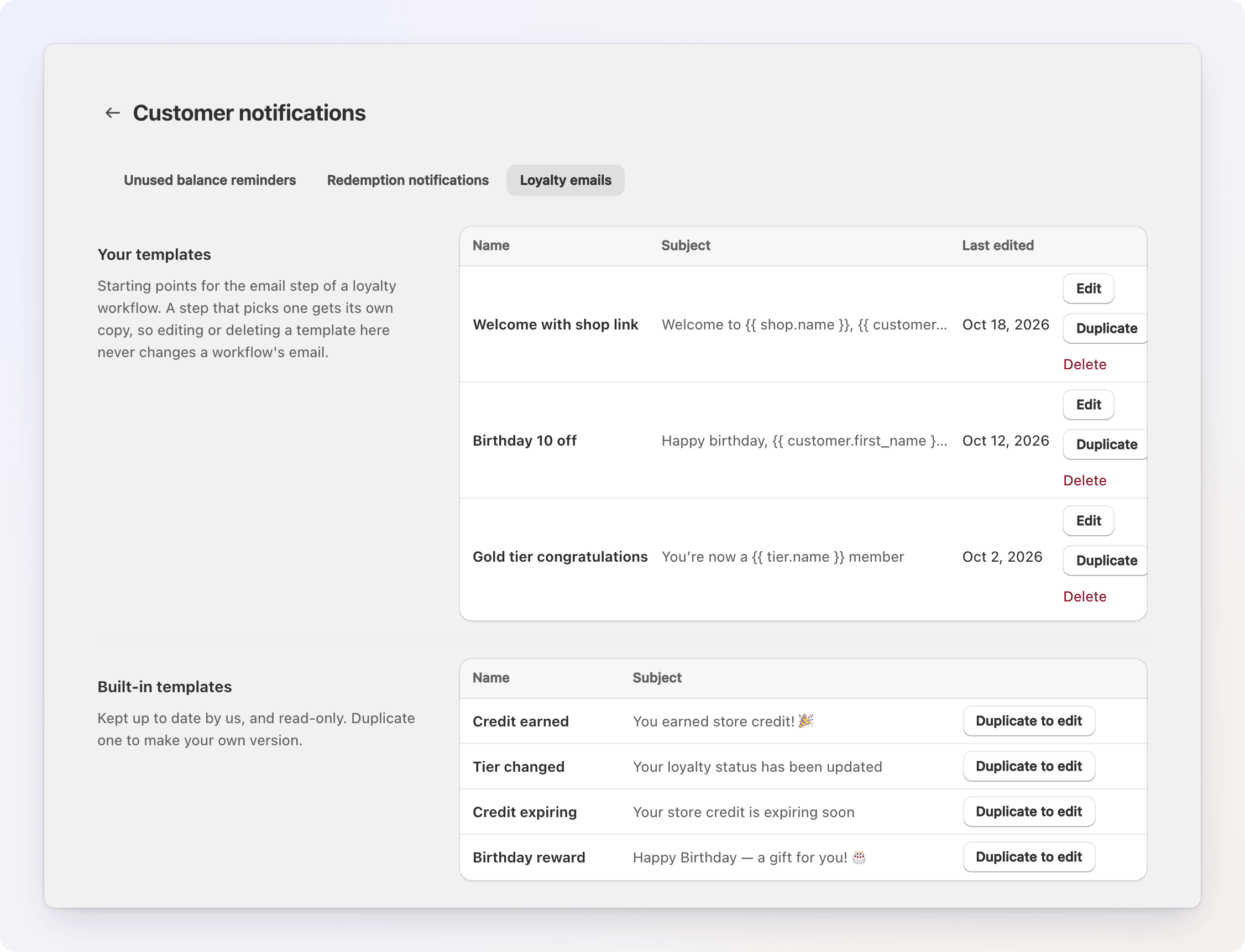
A saved template is only ever a starting point. The moment a workflow step picks one, it copies the subject, message and button into that step. Editing or deleting the template afterward never changes an email already sitting in a workflow — only what a step would start from if it picked the template today.
Your templates
Lists every template you've saved — Name, Subject, and Last edited — most recently edited first.
- Edit (or clicking the name) opens the full editor.
- Duplicate makes a copy named "Copy of [name]" (or "Copy of [name] (2)", and so on, if that's taken too) — a quick way to branch off an existing template instead of starting from scratch.
- Delete removes it, after you confirm. Workflow steps that already started from it keep their own copy, so nothing in a live workflow changes — but it disappears from the Template select, and any step that started from it shows "Started from a deleted template".
With nothing saved yet, the tab says "No saved templates yet." and offers Duplicate a built-in instead of an empty list — pick one of the four built-ins to start from its copy rather than a blank page.
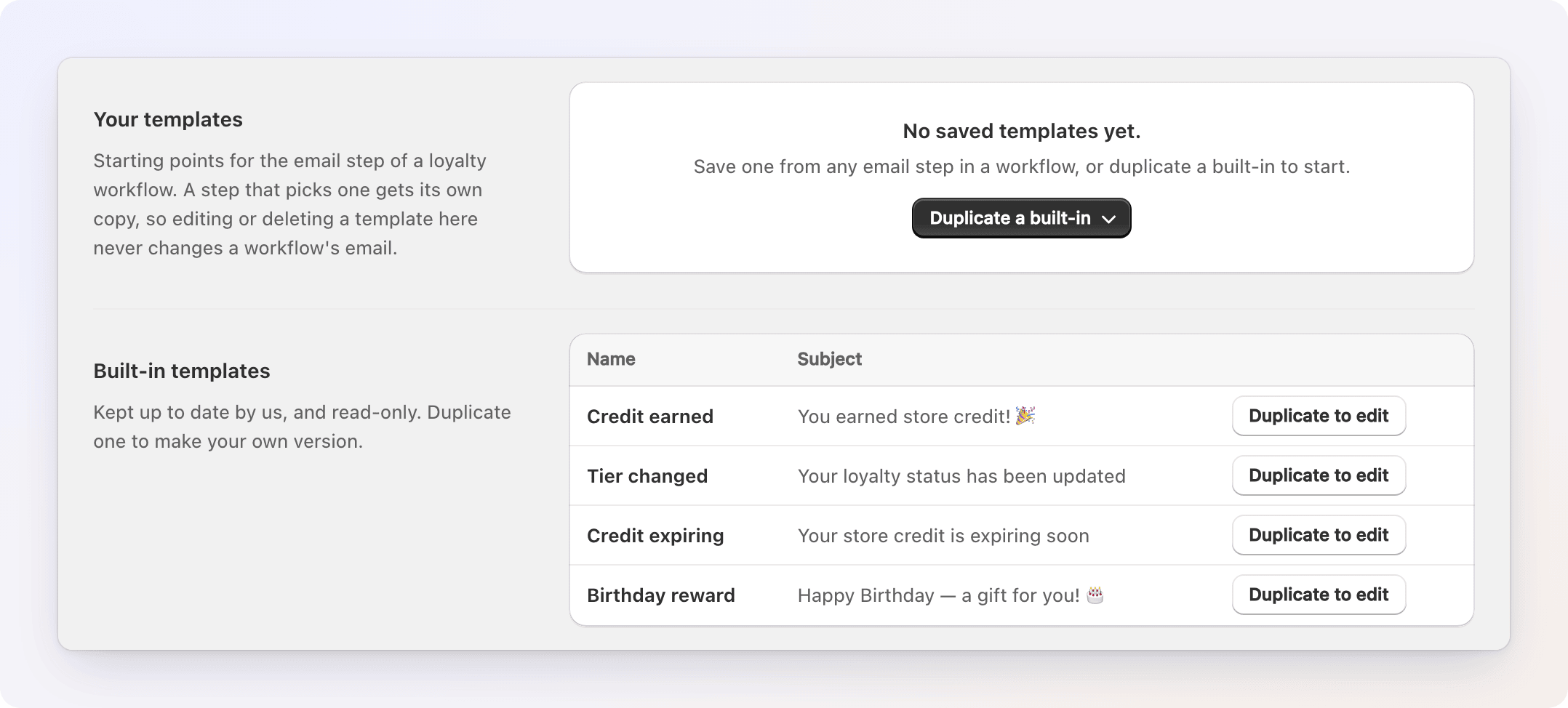
Save a template here with Name, Subject, Message and the optional button, or save one straight from a workflow step with Save as template, which captures whatever that step is sending right now. See Send a message.
Up to 50 templates per store — past that, saving says "You have 50 templates. Delete one to save another." Names must be unique (case-insensitive) and up to 60 characters.
Built-in templates
Credit earned, Tier changed, Credit expiring and Birthday reward are listed read-only, each with its subject and a Duplicate to edit button — the only way to customize one here is to duplicate it into your own templates and edit the copy, which opens straight in the editor. The built-ins themselves stay as we wrote them, including any future improvements we make to their wording.
The built-ins are starting texts, not automatic emails
A template is only sent when a workflow's Send Message step uses it. Nothing sends "Tier changed" or "Credit expiring" by itself because of its name — see Send a message.
The editor
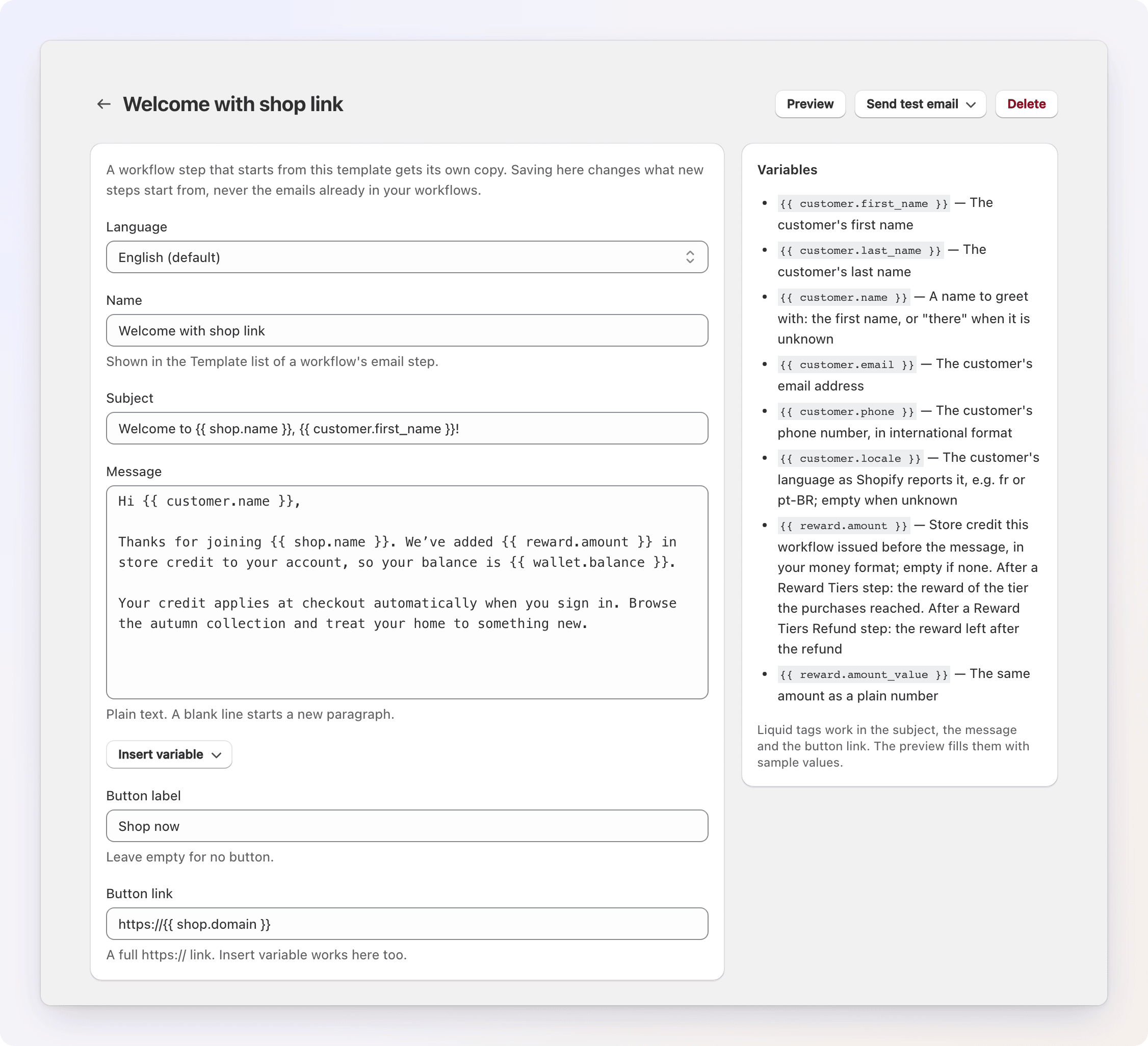
The editor opens as its own page, with Preview, Send test email and Delete in the header and the list of available variables beside the fields.
- Language — shown when your store publishes more than one language in Shopify. Pick one to write that language's subject, message and button label; an empty field falls back to your main language. The button's link is the same in every language. Customers who use that language get the translation once both its subject and message are filled in. See Languages.
- Name — shown in the Template select of a workflow's email step. Up to 60 characters.
- Subject — up to 200 characters.
- Message — plain text, up to 5,000 characters. A blank line starts a new paragraph; Gift Card Hero lays it out in its own responsive email design, so you never write or see raw HTML.
- Insert variable — drops a variable at the cursor; see the variables table for what's available. A mistake in the Liquid tags is reported when you save.
- Button label and Button link — an optional button under the message. Leave the label empty for no button. The link must be a full
https://address; Liquid works there too, sohttps://{{ shop.domain }}sends customers to your storefront. - Preview — renders the template in the real email layout, with sample values.
- Send test email — sends a real message, with sample values, to an address you type in, through your store's email setting.
- Delete — removes the template after you confirm. Workflow steps that started from it keep their own copy.
Changes are saved with the Save bar that appears when you edit; Discard drops them. Saving here only changes what a new step starts from — it never reaches back into a workflow that already picked this template.